
What can we help you with?
Proxy Instructions for Students in Self-Service
Colleague Self-Service
Granting Proxy Access
Proxy access allows you to give another person permission to view certain information in Colleague Self‑Service, like grades or tuition details.
Follow the steps below to set up or manage proxy access.
- Log in to Colleague Self‑Service using your student credentials.
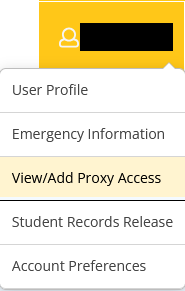
- Select the menu located in the top right under your username and select View/Add Proxy Access.
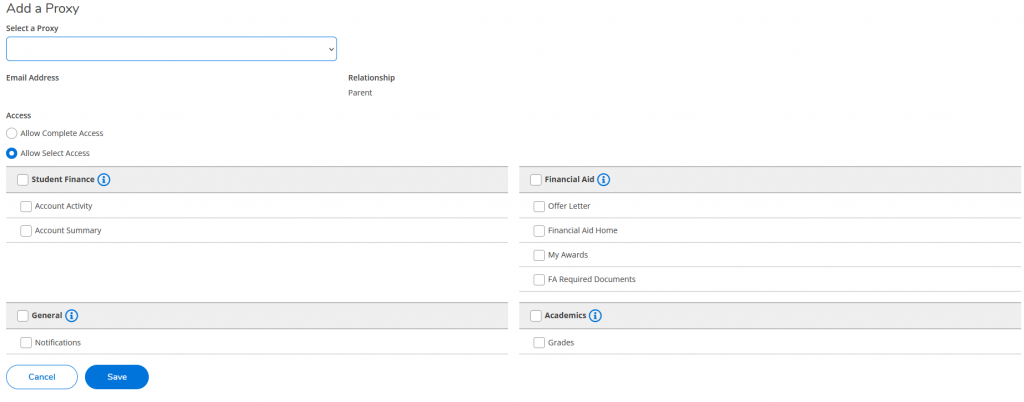
- The View/Add Proxy screen will allow you to review and edit any active proxies you have already set up. Locate the Add a Proxy section. Choose the person you want to grant access to from the dropdown list. If the person you wish to add does not appear on the list, contact the Business Office to have them added.

- Select the access you want to grant (for example grades or financial information) or choose full access. Click save when finished. The system will send them an email notification to the proxy with their login credentials. Verify that the email address shown is correct. If not, please contact the Business Office to have it updated.
- The page will then show who you’ve given access to. Click the pencil icon to change or remove access at any time.
