
What can we help you with?
Available Software
Technology Services and Educational Technology provide access to software for coursework, teaching, and research. The table below shows what is available, who can use it, which platforms it runs on, and how to get it. Full details for each application follow the table.
Applications listed as Download are hosted on the Technology Services website. You will be asked to sign in with your Wooster username and password before the download files are available.
If you need software that does not appear on this page, see Requesting Software Not Listed at the bottom of this article.
Software at a Glance
| Software | Who can use it | Platforms | Access |
| ArcGIS | All students, faculty, and staff | Web browser, Windows 11 | Cloud |
| ChemDraw Professional | Chemistry students added by course | Web browser, Windows 11, macOS | Cloud |
| Gaussian | All students, faculty, and staff | Windows 11, macOS | Download |
| GaussView | All students, faculty, and staff | Windows 11, macOS | Download |
| Mathematica | All students, faculty, and staff | Windows 11, macOS, Linux | Download |
| PyMOL | All students, faculty, and staff | Windows 11, macOS | Download |
| Qualtrics | All students, faculty, and staff | Web browser | Cloud |
| RStudio Server | All students, faculty, and staff | Web browser | Cloud |
| SPSS | All students, faculty, and staff | Windows 11, macOS | Download |
| Stata | Economics and Political Science only | Windows 11, macOS | Download |
ArcGIS
ArcGIS is a geographic information system used to build maps, analyze spatial data, and share the results. Wooster provides access through ArcGIS Online, which runs in a web browser.
- Who can use it: All students, faculty, and staff
- Platforms: Web browser, Windows 11
- How to get it: Follow the sign-in steps below. A desktop version is available for Windows 11 and requires a separate install.
- Documentation: ArcGIS Pro
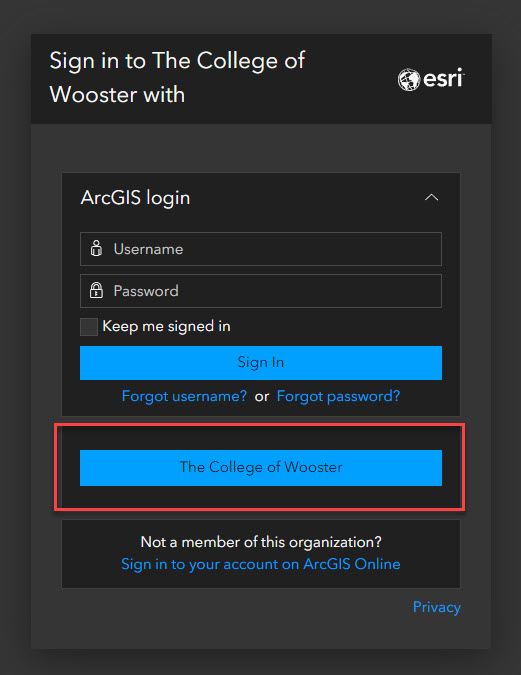
- Go to Wooster’s login portal.
- Select The College of Wooster. Do not type anything in the ArcGIS login fields.
- Sign in with your Wooster email address and password.
ChemDraw Professional
ChemDraw is a chemical drawing and analysis application used to create structures, reactions, and related documents. Access is provided through the Revvity Signals portal.
- Who can use it: Chemistry students whose course requires it. Technology Services adds students to the portal by class.
- Platforms: Web browser, Windows 11, macOS
- How to get it: You will receive an email with sign in instructions once you have been added to the portal. If your course requires ChemDraw and you have not received that email, contact the Help Desk.
- Documentation: Installing ChemDraw
Gaussian
Gaussian is a computational chemistry package used to model molecular structures and predict chemical properties.
- Who can use it: All students, faculty, and staff
- Platforms: Windows 11, macOS
- How to get it: Download from the Technology Services website and sign in with your Wooster credentials. The serial number needed for setup is included with the download files.
- Download: Windows
- Download: Mac
- Serial Numbers
- User Reference
GaussView
GaussView is the graphical interface for Gaussian. It is used to build molecular models and to view the results of Gaussian calculations.
- Who can use it: All students, faculty, and staff
- Platforms: Windows 11, macOS
- How to get it: Download from the Technology Services website and sign in with your Wooster credentials. The serial number needed for setup is included with the download files.
- Download: Windows
- Download: Mac
- Serial Numbers
- User Reference
Mathematica
Wolfram Mathematica is a technical computing environment used for symbolic and numeric computation, visualization, and modeling.
- Who can use it: All students, faculty, and staff
- Platforms: Windows 11, macOS, Linux
- How to get it: Create an account on the Wolfram portal using your Wooster email address, then download and activate the application.
- Installation: Mac OS and Windows
- Getting Access
- Mathematica Support
PyMOL
PyMOL is a molecular visualization application used to view and render three dimensional structures of proteins and other molecules.
- Who can use it: All students, faculty, and staff
- Platforms: Windows 11, macOS
- How to get it: Download the application from pymol.org, then apply the Wooster license file. The license file is available from the Technology Services website and requires you to sign in with your Wooster credentials.
- Installation Instructions
- Installation: Windows
- Installation: Mac OS
- Installation: Linux
- License File
Qualtrics
Qualtrics is a survey platform used to build, distribute, and analyze surveys. It runs entirely in a web browser, so there is nothing to install.
- Who can use it: All students, faculty, and staff
- Platforms: Web browser
- How to get it: Sign in at wooster.co1.qualtrics.com with your Wooster credentials.
- Login Link
RStudio Server
RStudio Server provides a browser based environment for working in R, used for statistical computing and data analysis. There is nothing to install.
- Who can use it: All students, faculty, and staff
- Platforms: Web browser
- How to get it: Sign in at rstudio.wooster.edu with your Wooster credentials.
- Login Link
SPSS
IBM SPSS Statistics is a statistical analysis application used for data management, statistical testing, and reporting.
- Who can use it: All students, faculty, and staff
- Platforms: Windows 11, macOS
- How to get it: Download from the Technology Services website and sign in with your Wooster credentials. An authorization code is included with the download files and is required to complete setup.
- Installation: Windows
- Installation: Mac OS
- Authorization Code
If the installer reports an administrator privileges error on macOS
Some macOS installations stop with an error stating that administrator privileges are required, even when you are signed in as an administrator. The steps below correct the permissions on the installer files.
If you are not comfortable working in Terminal, stop here and contact the Help Desk. A technician will complete this step for you.
- Open Terminal from Applications, then Utilities.
- Type cd followed by a space. Do not press Return yet.
- Drag the SPSS installer folder from Finder onto the Terminal window. This fills in the correct path.
- Press Return. Confirm the path shown matches the installer folder before continuing.
- Type the following command and press Return.
sudo chown -R root:admin *
- Enter your Mac password when prompted. No characters appear as you type. Press Return.
- Run the SPSS installer again.
This command changes ownership of everything in the current folder. Confirming the path in step 4 matters, because running it from the wrong folder will change permissions on files you did not intend to modify.
Stata
Stata is a statistical software package used for data analysis, data management, and graphics.
- Who can use it: Economics and Political Science only
- Platforms: Windows 11, macOS
- How to get it: Download from the Technology Services website and sign in with your Wooster credentials. Licensing information is included with the download files. If you are not in Economics or Political Science and your coursework requires Stata, contact the Help Desk.
- Download: Windows
- Installation: Windows
- Licensing: Windows
- Download: Mac
- Installation: Mac
- Licensing: Mac
- Download: 64 bit Linux
- Installation and Licensing: 64 bit Linux
- Licensing serial number, code, & authorization for all operating systems
Microsoft 365
Microsoft 365 includes Word, Excel, PowerPoint, Outlook, OneNote, and Teams. It is available at no cost to all students, faculty, and staff, and can be installed on personal devices as well as College issued ones.
For installation steps, see Installing Microsoft 365.
Student Printing
Printing information for students, including how print allocations work and how to add print queues to your device, is covered in Printing as a Student.
Requesting Software Not Listed
If you need an application that does not appear on this page, contact the Help Desk with a request. Include the following so the request can be reviewed without a round of follow up questions.
- The name of the application and, if it matters, the specific version
- The course, department, or project it is needed for
- How many people will need it
- The date you need it available
Licensing review, purchasing, and packaging take time. Submit requests well ahead of the date you need the software, especially for requests tied to the start of a term.
Getting Help
If you run into any issue during setup, contact the IT Help Desk.
- Email: helpdesk@wooster.edu
- Phone: 330-287-4357 (330-287-HELP)
- Walk-in: Burton D. Morgan Hall – Help Desk, 4th floor
- Hours: Monday through Friday, 8:30 am to 5:30 pm