
What can we help you with?
Using the IT Help Desk Self-Service Portal
The IT Help Desk self-service portal is where you submit requests to IT, follow the progress of your open requests, reserve equipment, and see the College devices assigned to you. It is available from any browser, on a computer or a phone, at helpdesk.wooster.edu.
What You Can Do in the Portal
- Submit a new request to the IT Help Desk
- Track the status of requests you have already submitted
- Reply to a technician and attach files
- Reserve loaner equipment and track active reservations
- See the College devices assigned to you
Who Can Use the Portal
The portal is available to current faculty, staff, and students with an active College account. No separate setup is required. If your account is active, you can sign in.
Signing In
- Go to helpdesk.wooster.edu.
- Select Sign in with Wooster. There is no separate username and password box on this page. The button takes you to the standard College sign-in.
- Sign in with your Wooster account and complete multifactor authentication if prompted.
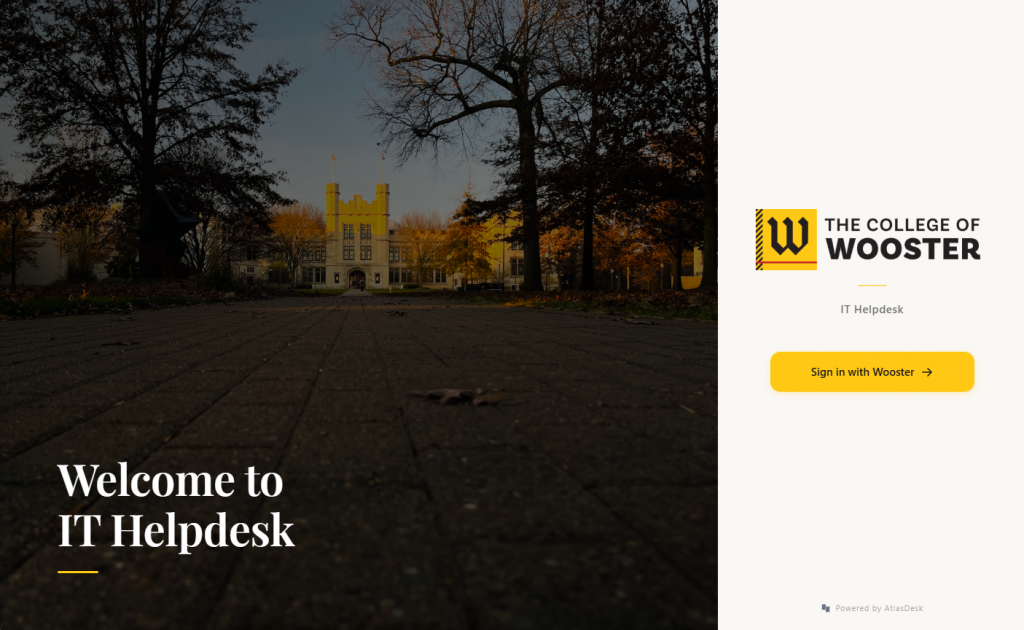
After you sign in, the web address in your browser changes to atlasdesk.wooster.edu. That is expected. AtlasDesk is the system behind the Help Desk portal, and helpdesk.wooster.edu forwards you to it.
Your Dashboard
Signing in brings you to your dashboard. At the top are two buttons, Submit a Request and Reserve Equipment. Below them are three counts that summarize your activity:
- Open Tickets, the requests you currently have in progress
- Active Reservations, equipment you currently have reserved or checked out
- Assigned Assets, College devices on record as assigned to you
Further down, Recent Tickets and Recent Reservations show your latest activity. Select View all in either section to see the full list.
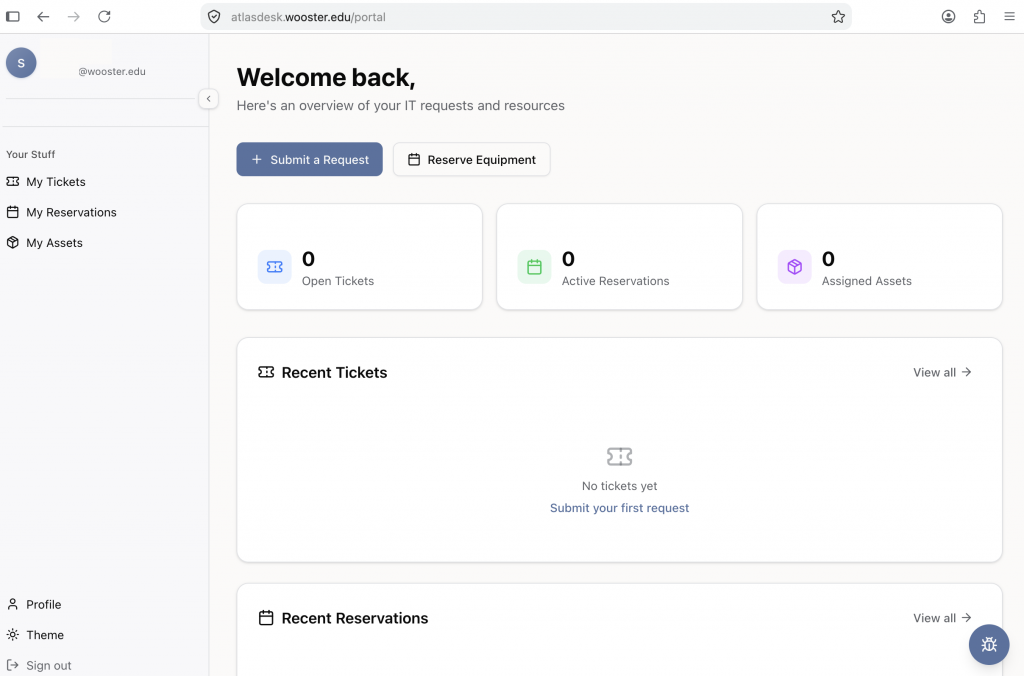
The left sidebar contains Profile, Theme, and Sign out. Theme lets you switch the portal between light and dark appearance, which is a personal display preference and does not change anything about your requests.
Submitting a Request
Use the portal for any IT request: a device that is not working, software you need installed, an account or access question, or anything else you would otherwise call or email the Help Desk regarding.
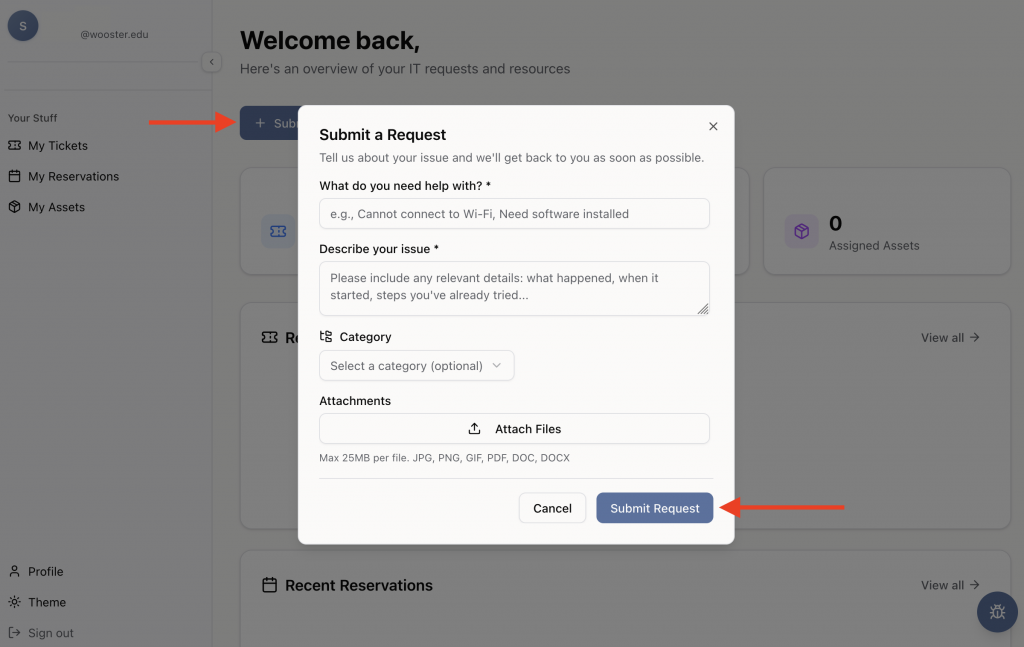
- Select Submit a Request from the dashboard, or New Request from the My Tickets page.
- In the field What do you need help with, enter a short summary of the issue. Think of it as a subject line, for example unable to connect to campus Wi-Fi.
- In Describe your issue, give the details. Include what happened, when it started, and anything you have already tried. The more specific you are, the fewer follow-up questions a technician has to ask.
- Select a Category if one fits. This field is optional and the Help Desk will categorize the request if you leave it blank.
- Attach files if they help. Screenshots of an error message are especially useful. Accepted file types are JPG, PNG, GIF, PDF, DOC, and DOCX, up to 25 MB per file.
- Select Submit Request.
Do not include your password or other sensitive personal information in a request. The Help Desk will never ask for your password, and anything entered in a ticket is visible to the technicians working it.
Tracking Your Requests
My Tickets lists everything you have submitted, along with any request a technician opened on your behalf. You see only your own requests.
Requests are grouped into views you can switch between:
- All shows every request on your record
- Open is work currently in progress
- Resolved means a technician believes the work is finished and it is awaiting a final review
- Closed is completed and finished
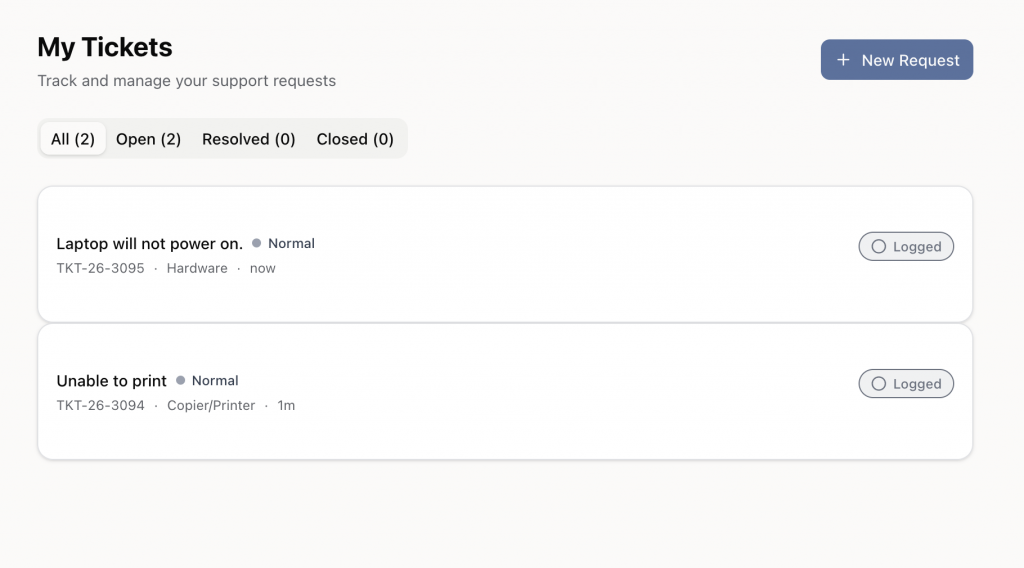
Open a request to see its full history, add a comment, or attach a file. You cannot close a request yourself. If a resolved request turns out to be unfinished, reply to it and it returns to the Help Desk.
If a request seems to sit without visible activity, work may still be happening. Technicians record internal notes to each other that are not shown in your view.
Email Updates and Replies
The portal sends email to the address on your College account whenever a response is added to one of your requests. Internal notes between technicians do not generate email and are not visible to you.
You can reply directly to those email messages. Your reply is added to the request automatically and appears in its history, so you do not have to return to the portal to continue a conversation.
Replying to a request that is already resolved or closed reopens it and returns it to the Help Desk. If an old issue comes back, replying to the original message is the fastest way to pick it up again.
Reserving Equipment
The portal is one of the ways to reserve loaner equipment such as laptops and projectors. You can also reserve by email, by phone, or in person at the Help Desk.
- Select Reserve Equipment from the dashboard, or from the My Reservations page.
- Confirm who the reservation is for.
- Choose the device type you need from the available options.
- Complete the request and submit it.
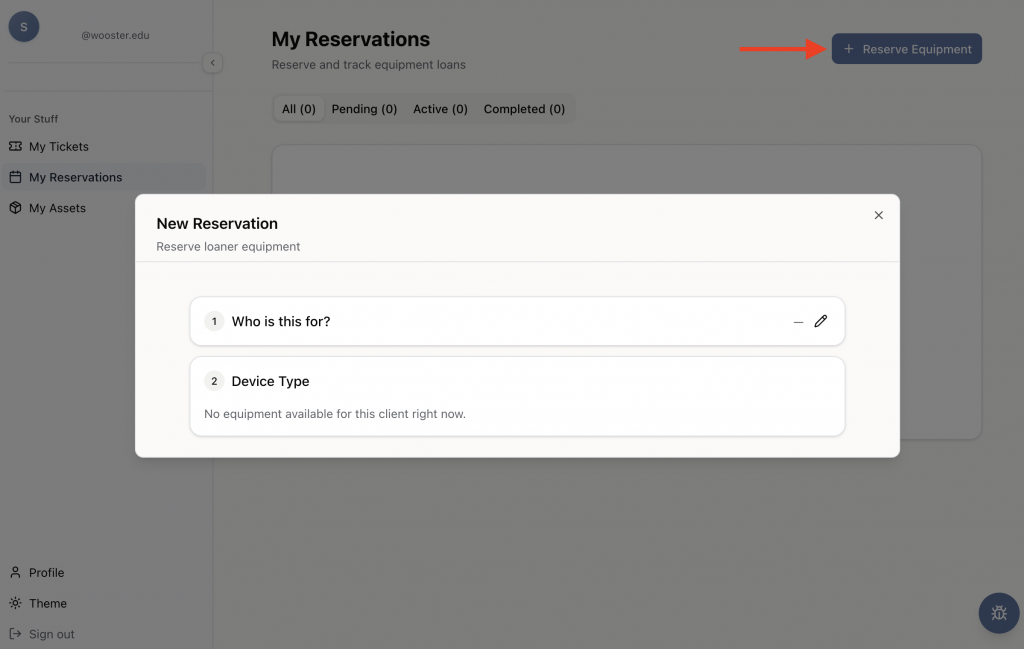
My Reservations tracks your requests through Pending, Active, and Completed. A reservation is not confirmed until the Help Desk reviews it and lets you know the equipment is ready. Bring your College ID when you pick up equipment.
For loan periods, extensions, returns, and charges, see the equipment reservations article.
Assigned Assets
The Assigned Assets count on your dashboard reflects the College devices currently recorded as assigned to you. A device appears here after a technician assigns it during setup or deployment.
If a device you use is missing from the list, or a device appears that you no longer have, contact the Help Desk so the record can be corrected.
Getting Help
If you run into any issue during setup, contact the IT Help Desk.
- Email: helpdesk@wooster.edu
- Phone: 330-287-4357 (330-287-HELP)
- Walk-in: Burton D. Morgan Hall – Help Desk, 4th floor
- Hours: Monday through Friday, 8:30 am to 5:30 pm