
What can we help you with?
Installing Apps from the Company Portal
The Company Portal is available on most college-issued Windows laptops, college-issued Macs received in Spring 2026 or later, and college-issued iPads.
iOS
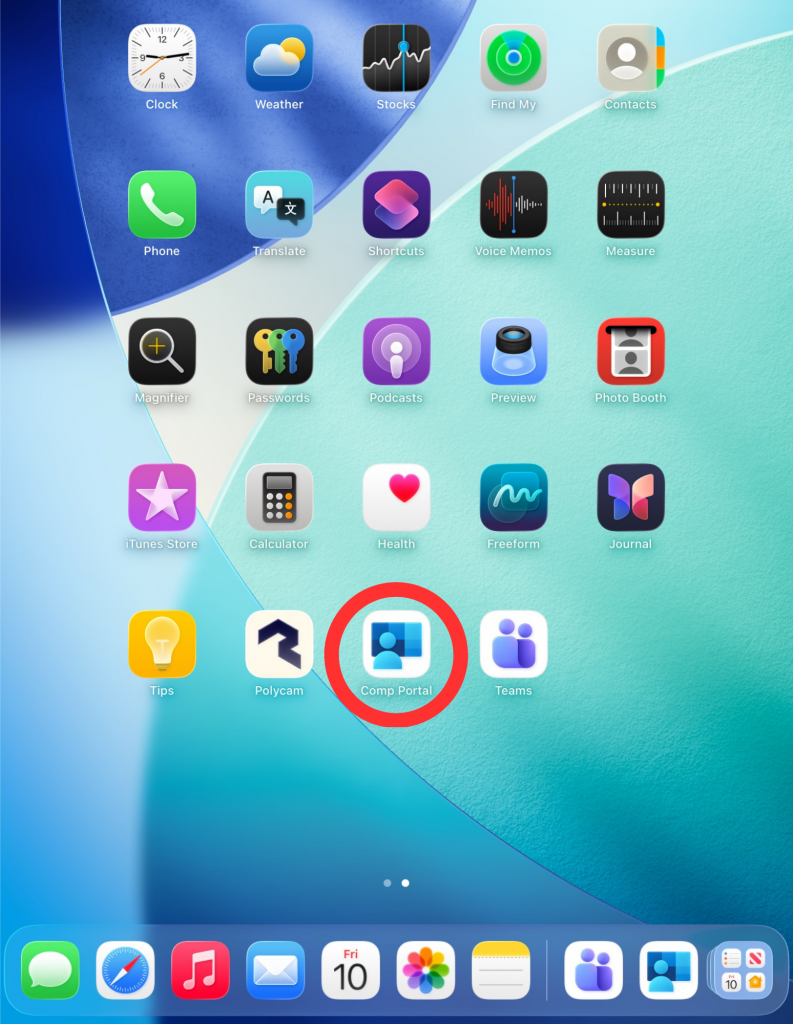
- On your college-issued iPad, locate the “Company Portal” app and tap it to launch the application.
- Note: If you have never signed into the “Company Portal” you will be prompted to sign in when it launches. Use your Wooster email address and password to sign in. You will be prompted to authenticate your account as well.
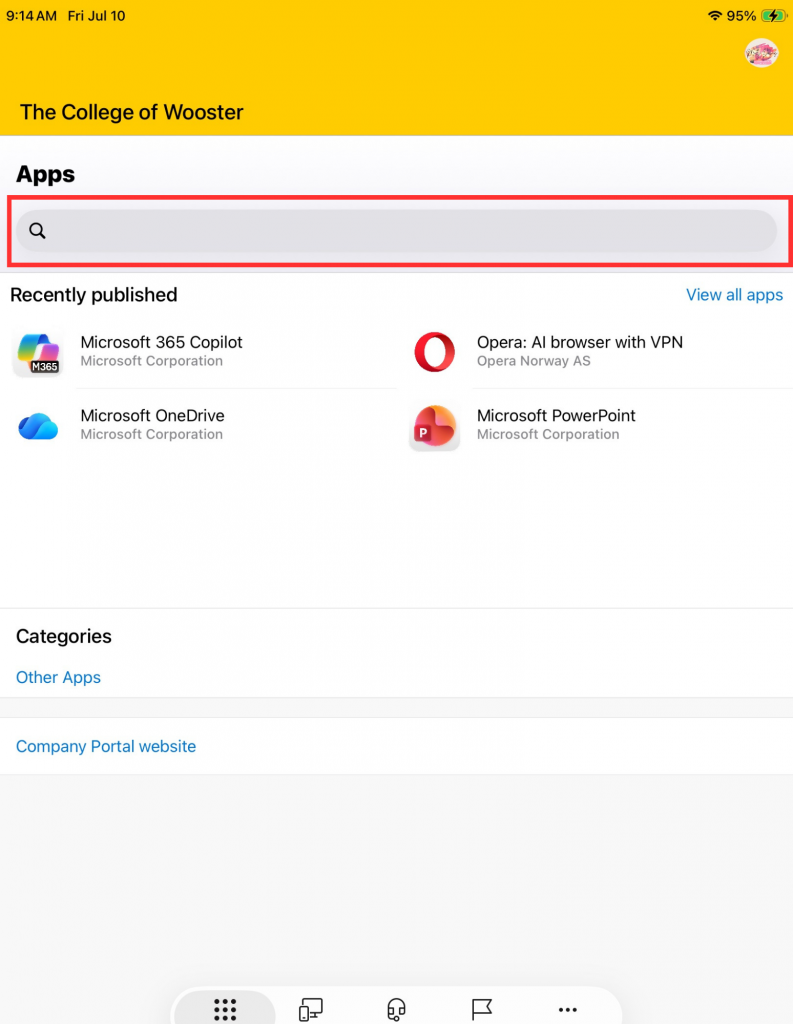
- Tap the search bar towards the top of the window.
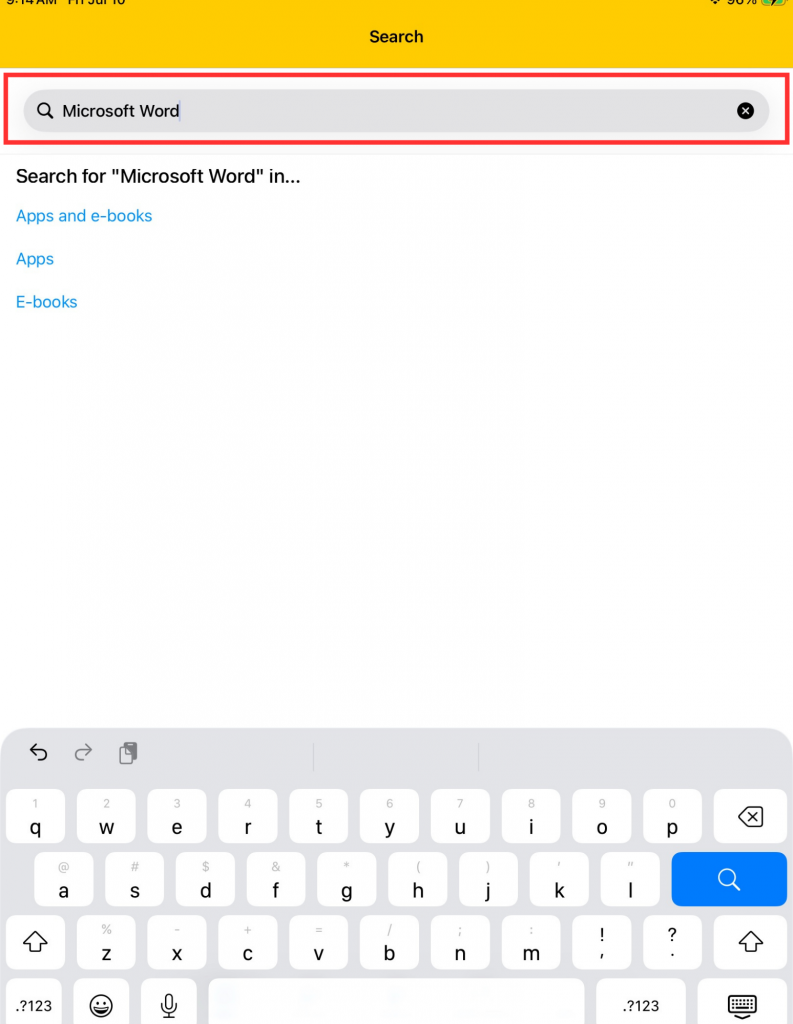
- Type in the name of the app you would like to install and tap the magnifying glass or enter to search for the application.
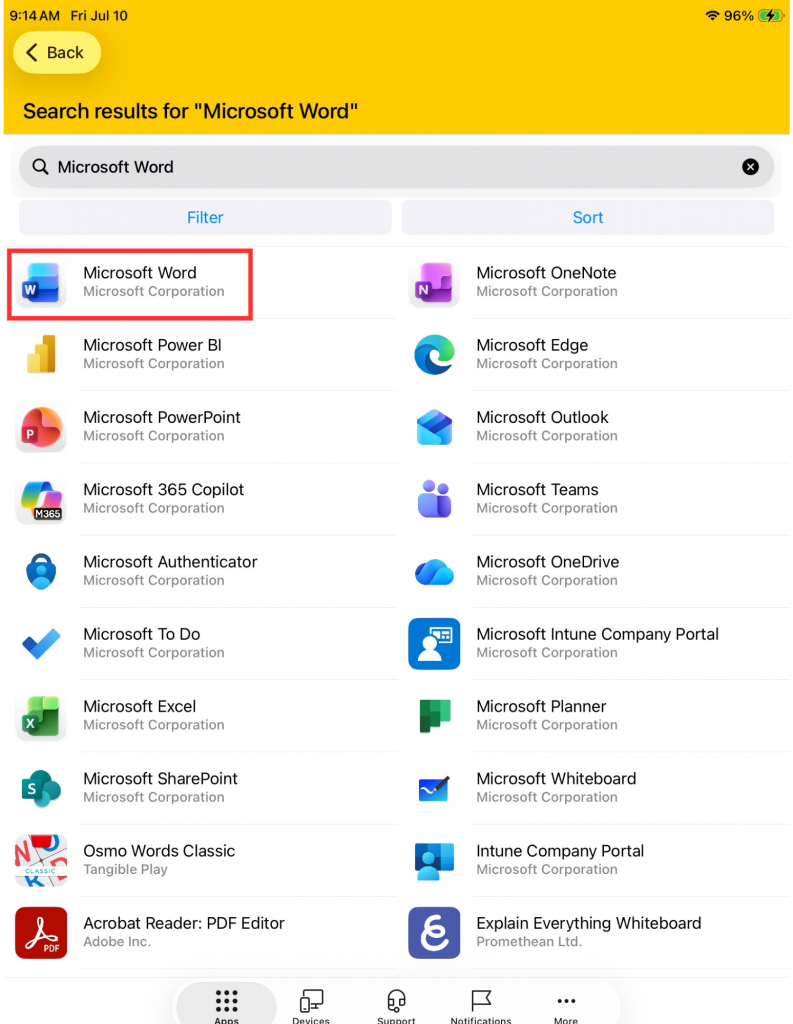
- A page of apps that fit your search will load on the page, tap the app that you would like to install.
- On the app’s page, tap “Install”.
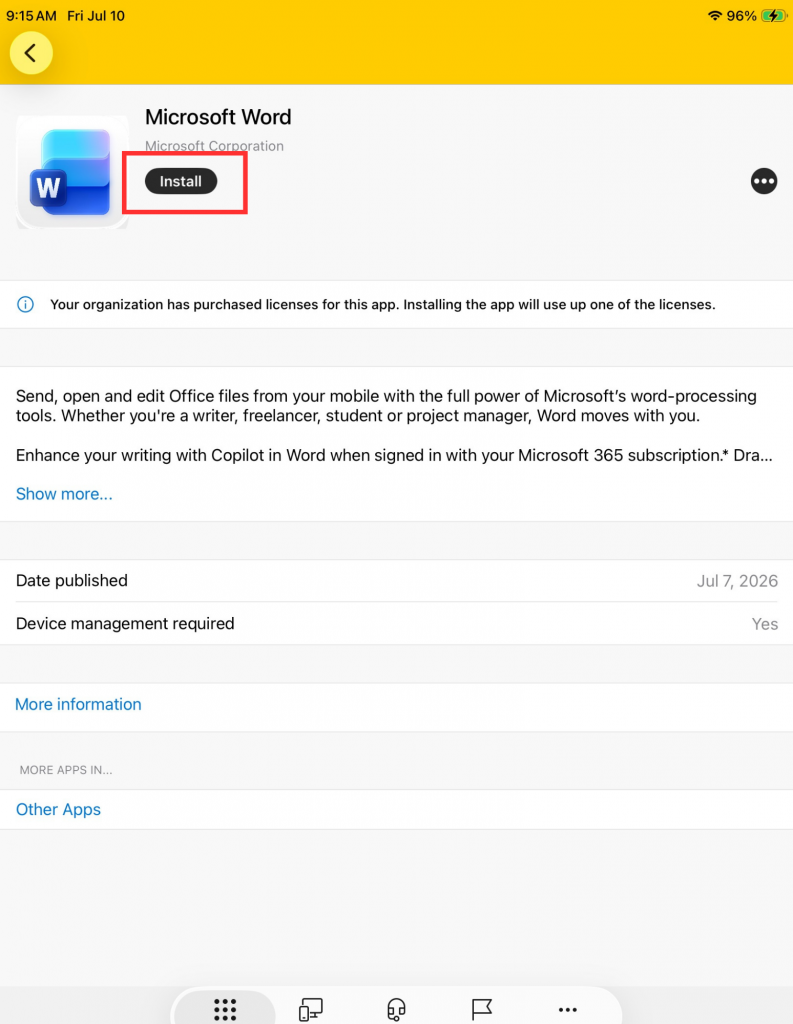
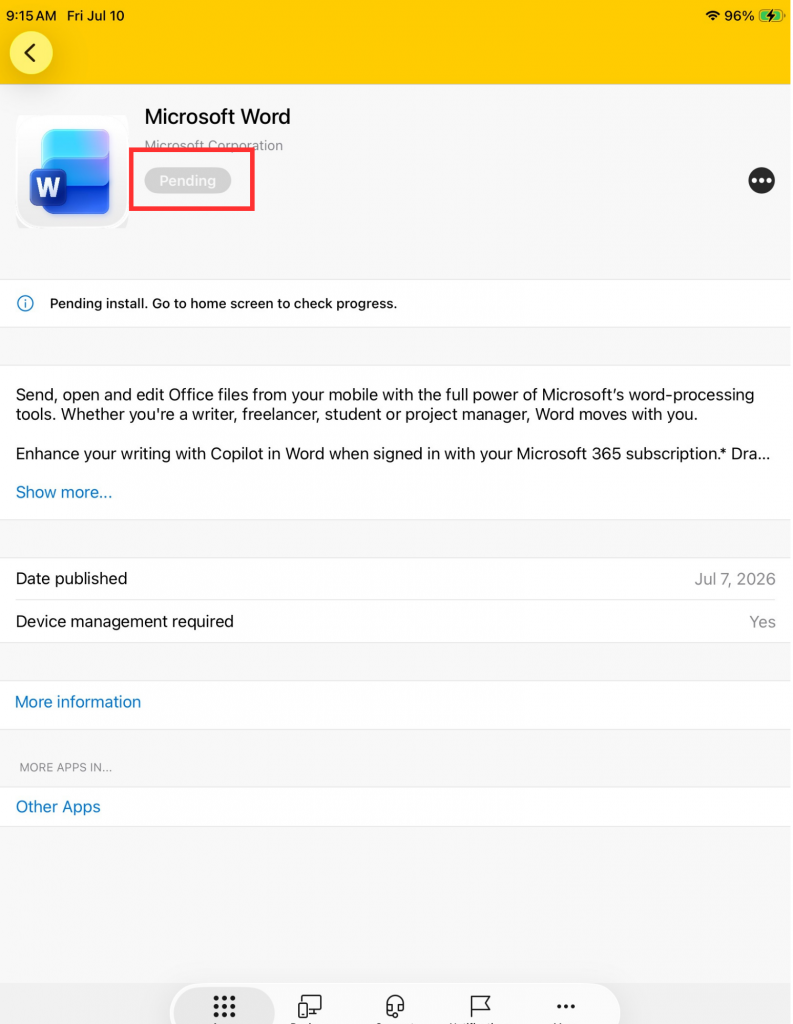
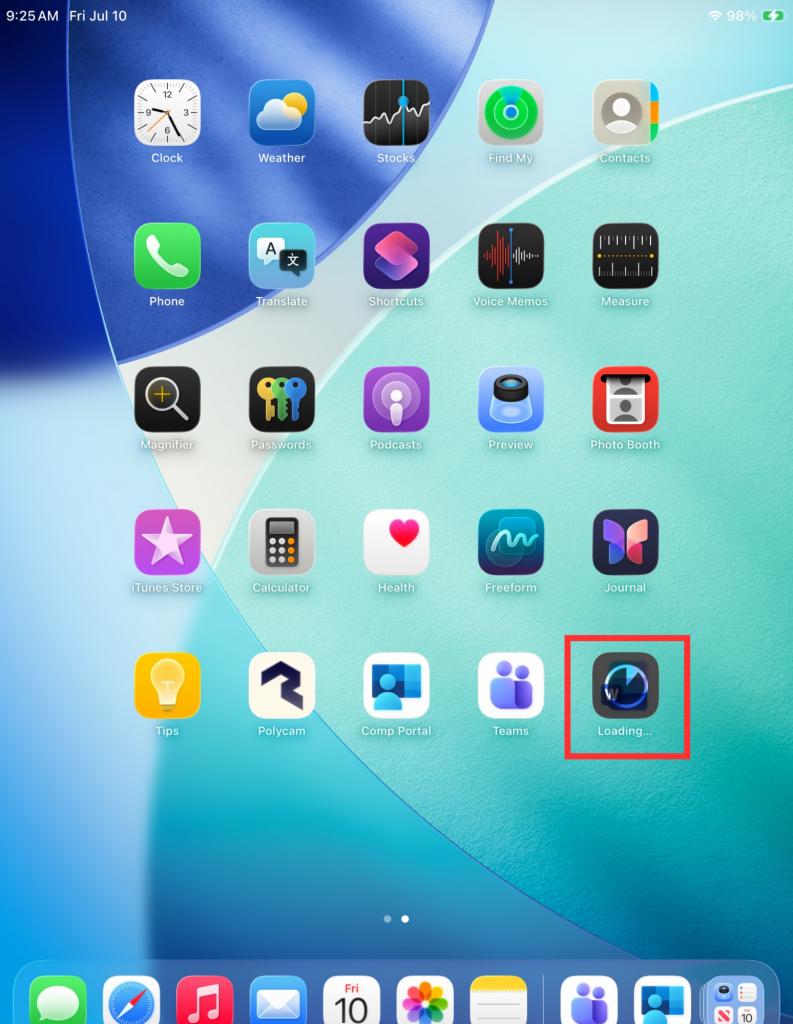
6. Once you click “Install”, the button will gray out. As soon as “Pending” appears in the button you can close “Company Portal” and go to your Home screen where you can see the app installing.
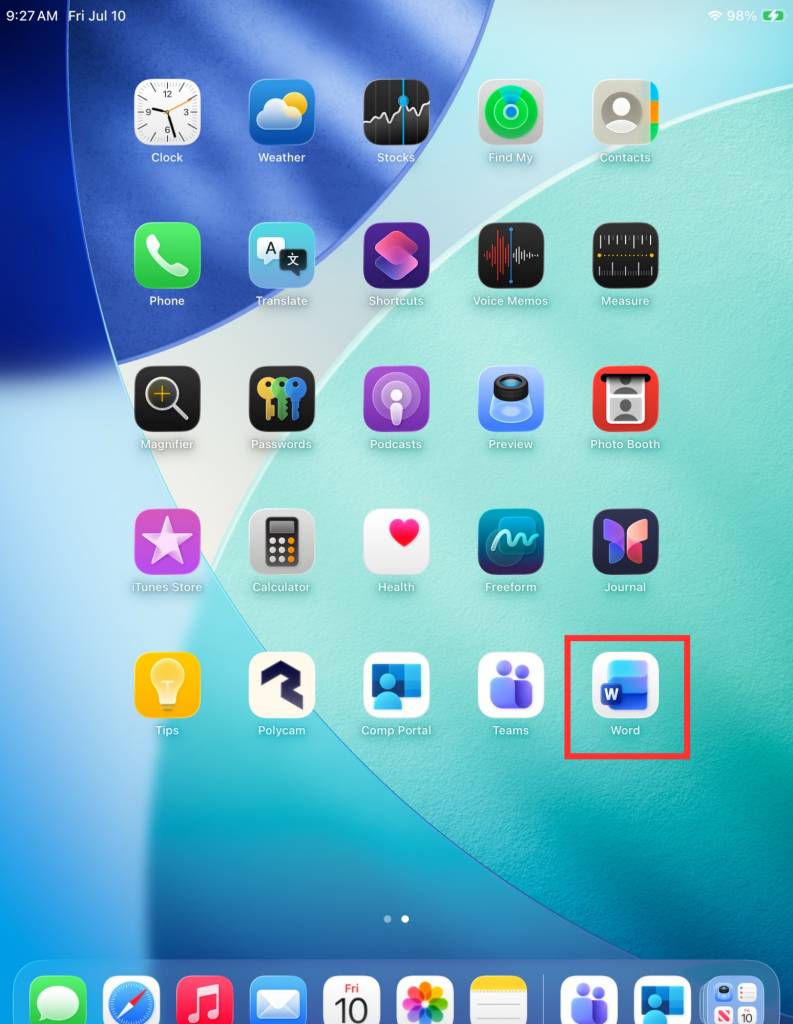
- Upon launching the newly installed app, if it is a Wooster resource, you may be prompted to login.
MacOS
Instructions coming soon.
Windows
Instructions coming soon.