
What can we help you with?
Using Outlook as the Campus Directory
Microsoft Outlook includes a directory of the campus community. It draws on College records, so it stays current without anyone maintaining it by hand.
This is an addition to the campus directory published on the Wooster website, not a replacement for it. Both remain available. Outlook is usually the faster option when you are already working in your email, or when you want to move straight from finding a person to emailing them or starting a Microsoft Teams chat.
You can search by name, position title, department, and office location. Results include email address, phone number, job title, department, and office location.
The steps differ depending on which version of Outlook you use. Find the section below that matches your setup.
Before You Begin
- You must be signed in to Outlook with your Wooster account. The directory is not available to accounts outside the College.
- Directory results are separate from your personal contacts. Searching the directory does not add anyone to your contact list.
- Some accounts are intentionally not listed, including shared mailboxes, resource accounts, and service accounts.
Determining Your Version of Outlook
If you are unsure, use the following to identify your setup:
- Windows computer, and you see a Gear icon in the upper right edge of the window’s horizontal bar: you are in New Outlook. Follow the New Outlook on Windows section.
- Windows computer, and you see a ribbon across the top with tabs such as Home, Send / Receive, and Folder: you are in Classic Outlook. Follow the Classic Outlook on Windows section.
- Reading your email in a web browser: follow the Outlook on the Web section.
- Mac: follow the Outlook on Mac section.
- Phone or tablet: follow the Outlook on a Phone or Tablet section.
New Outlook on Windows
- Open Microsoft Outlook.
- Click the People icon on the left side of the window.
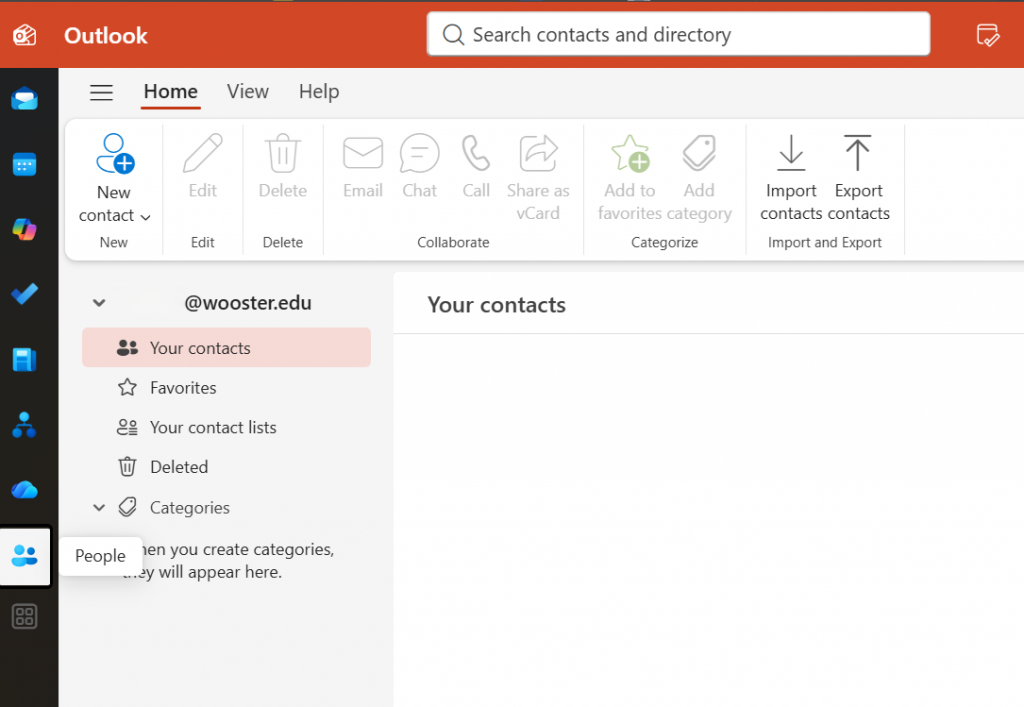
- Locate the search bar at the top of the application titled Search contacts and directory. Click inside the search box and type the keyword you want to search for. You can search by name, position title, department, or office location.
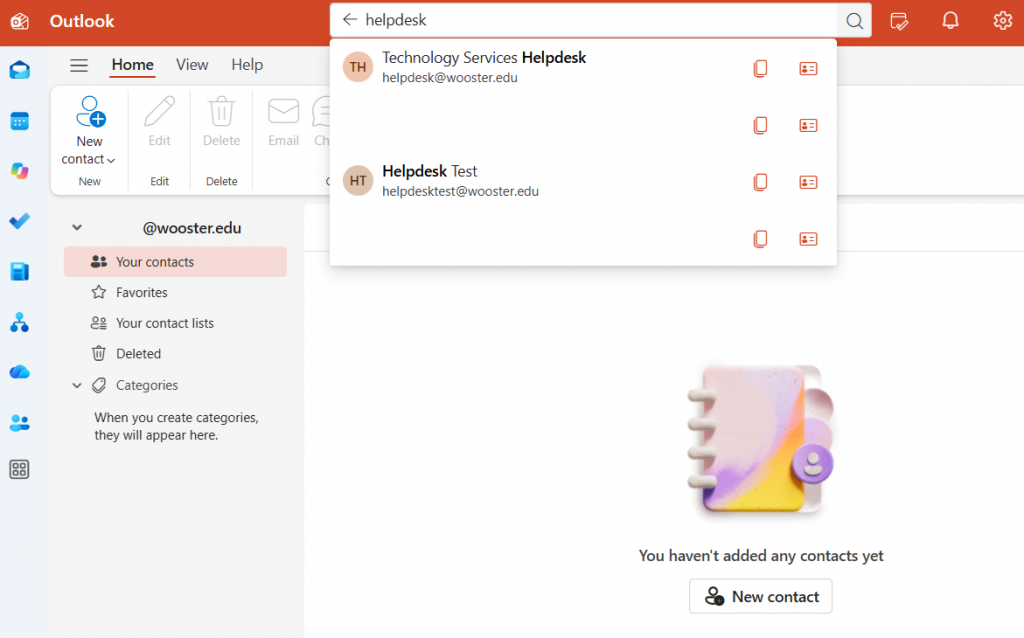
- Press Enter or click the magnifying glass. Matches appear below the box as you type, but it is recommended that you not click those suggestions unless you are certain one of them is the single result you want. Pressing Enter instead fills the window with all matches for the term you entered.
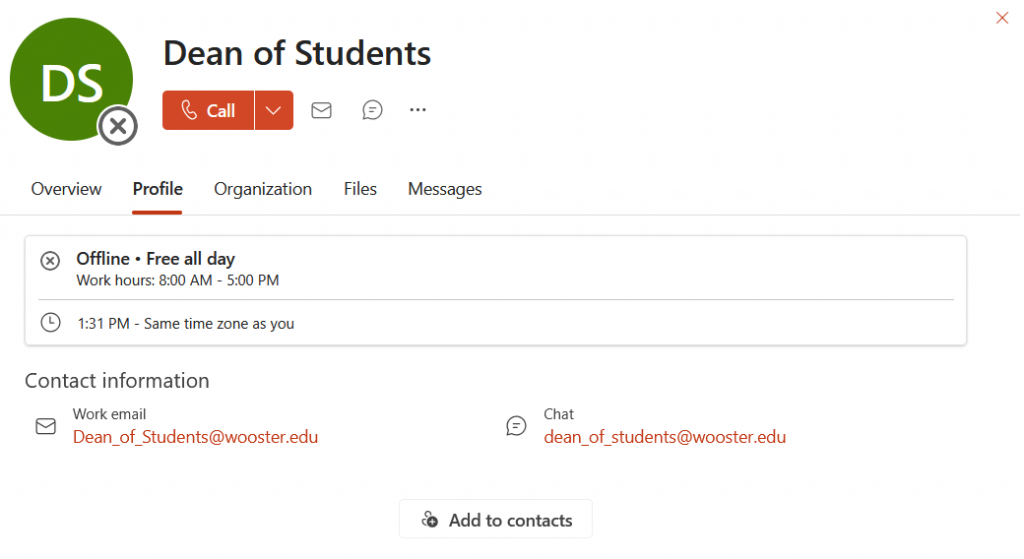
- Click a name to see the details for that person, including name, title, department, email address, phone number, and office location.
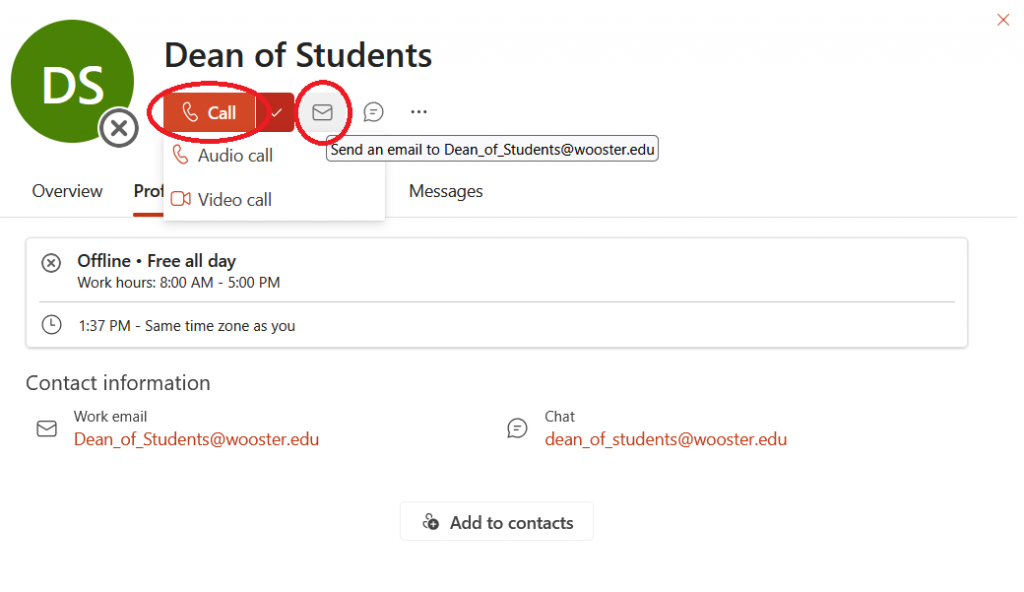
- Hover over a person’s name to see options for sending an email or starting a Microsoft Teams conversation directly from the search results.
Outlook on the Web
Outlook on the web uses the same interface as the New Outlook app, so the directory works the same way in both. The steps are repeated here so you can follow them without switching sections.
- Sign in to Outlook in your browser at outlook.office.com using your Wooster account.
- Click the People icon on the left side of the window.
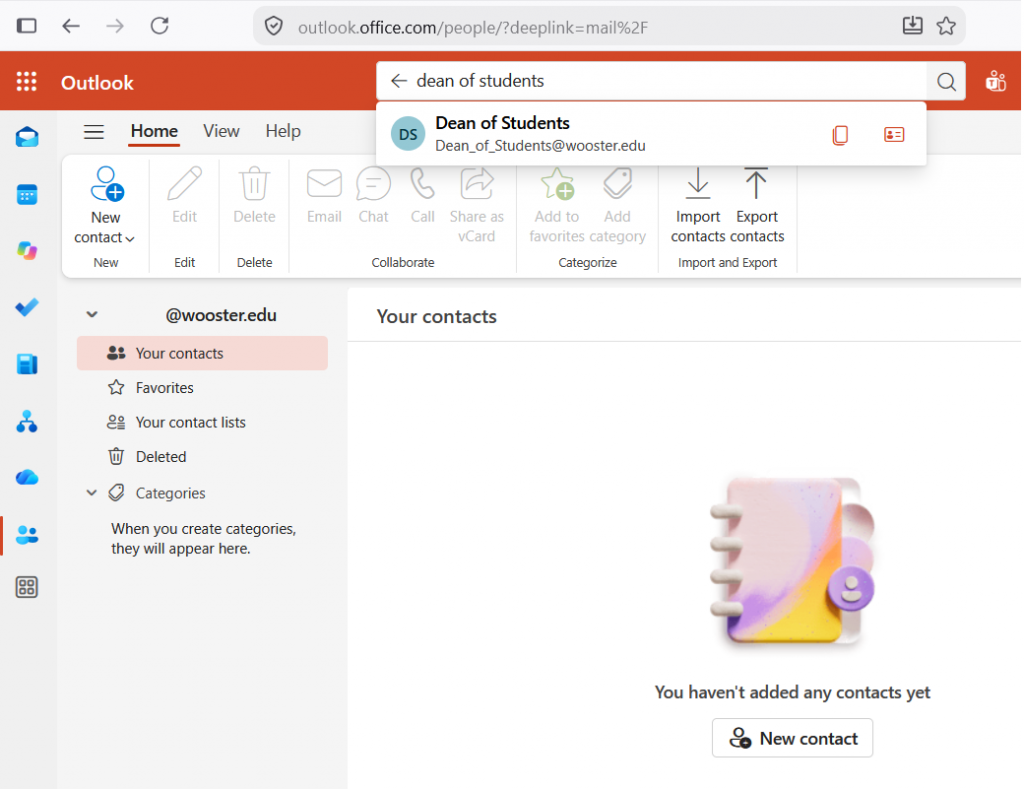
- Click inside the search bar at the top titled Search contacts and directory, then type the keyword you want to search for.
- Press Enter to see all matches for the term you entered.
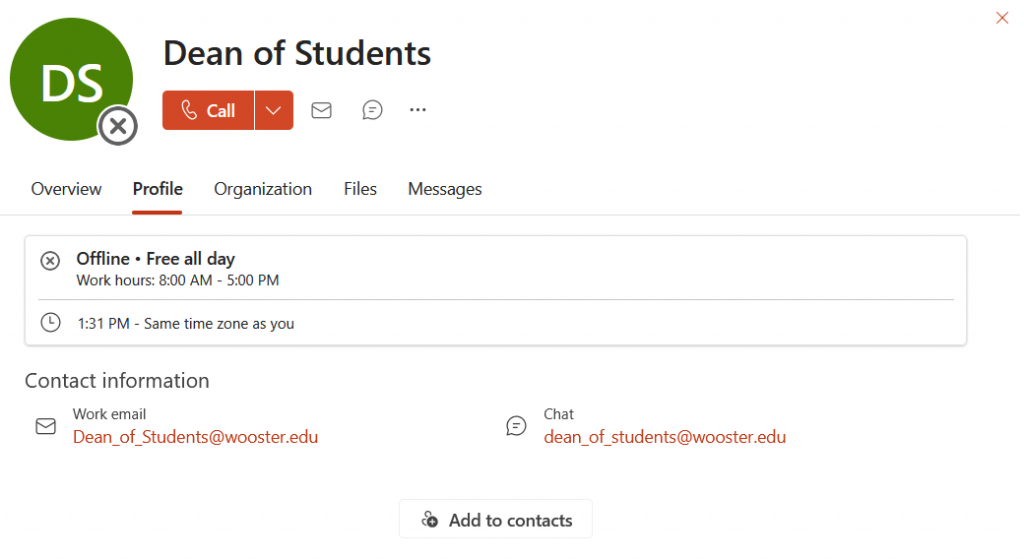
- Click a name to see that person’s details, or hover over a name for options to send an email or start a Microsoft Teams conversation.
Outlook on the web is a useful fallback if directory search is not behaving as expected in a desktop app, since it always reflects the current version of the interface.
Classic Outlook on Windows
Microsoft is phasing out Classic Outlook for Windows in favor of New Outlook. These steps are provided for users who are still on the classic interface. If you have the option to switch to New Outlook, the New Outlook on Windows section above will match what you see going forward.
- Open Microsoft Outlook.
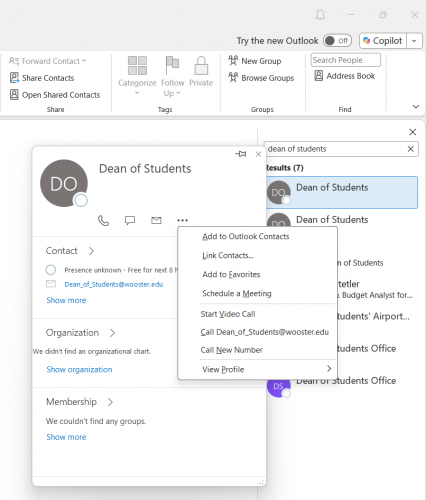
- The first time you use this feature, it is helpful to dock the search in the People tab. Hover over, but do not click, the People icon on the left side of the Outlook window.
- In the upper right of the panel that appears, click the small icon with the blue arrow. This adds a pane to the right side of the window for searching the directory. You will not need to repeat this step unless the search pane is closed.
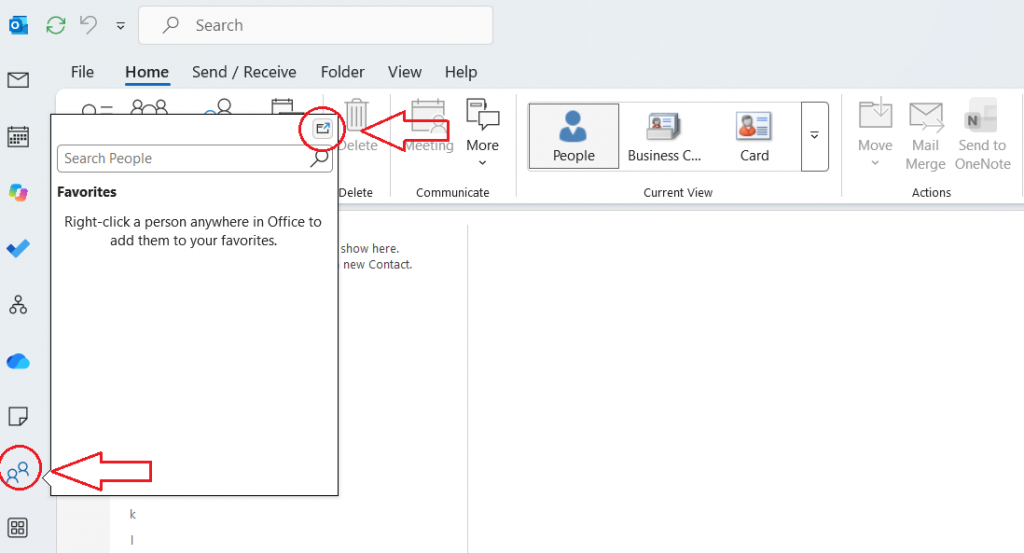
- In the new pane on the right side of the window, enter the keyword you want to search for. You can search by name, position title, department, or office location.
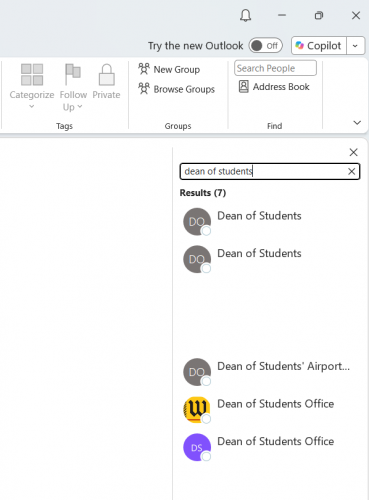
- Click a name to see the details for that person, including name, title, department, email address, phone number, and office location.
- Options to send an email directly to the person appear on their profile display.
Outlook on Mac
These steps cover the new Outlook for Mac, which is the supported version. Legacy Outlook for Mac is being retired and should not be used for directory searches.
- Open Microsoft Outlook.
- Click the People icon at the bottom of the icon column along the left edge of the window.
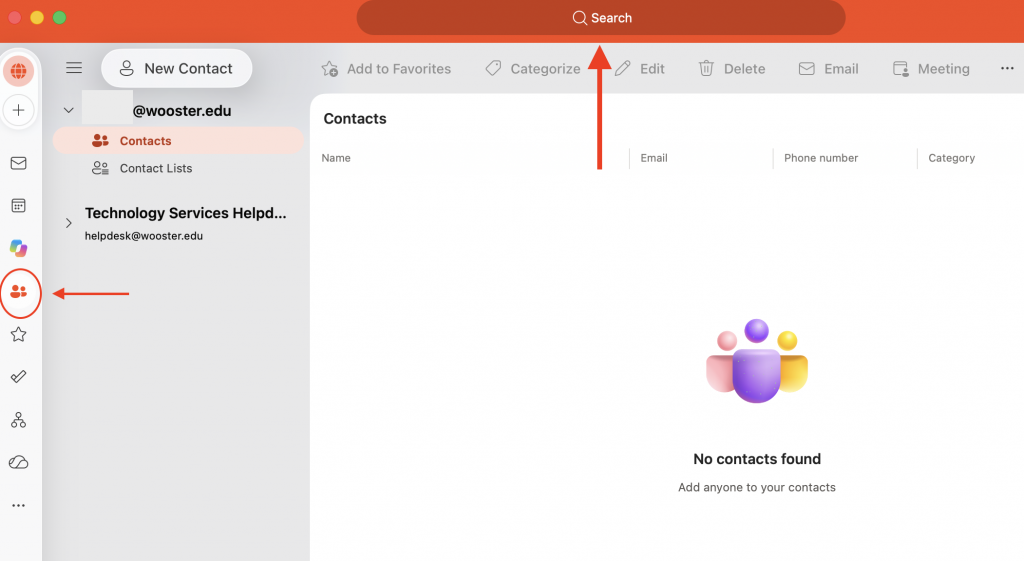
- Click the Search bar at the top of the window.
- Confirm the scope selector to the left of the search bar is set to All Contacts. This is what allows the search to reach the campus directory rather than only your personal contacts.
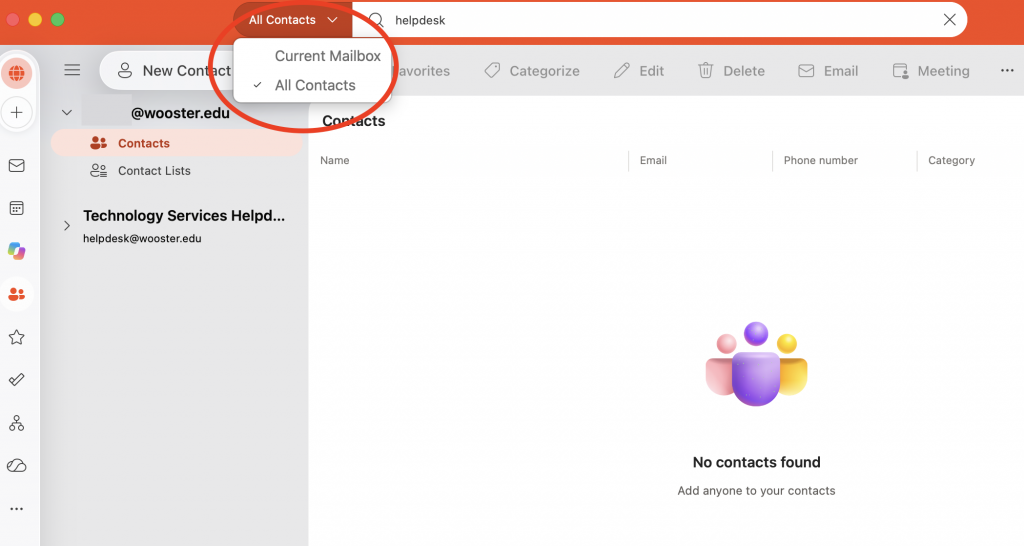
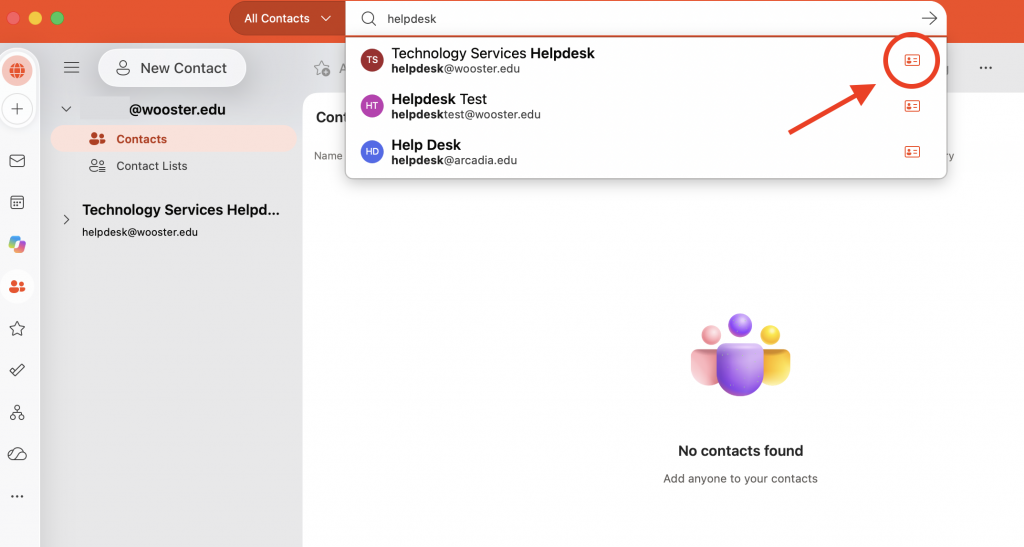
- Type the keyword you want to search for. You can search by name, position title, department, or office location. Suggested matches appear beneath the search bar as you type.
- To open a person’s contact card directly from the suggestion list, click the small contact card icon at the right end of their row.
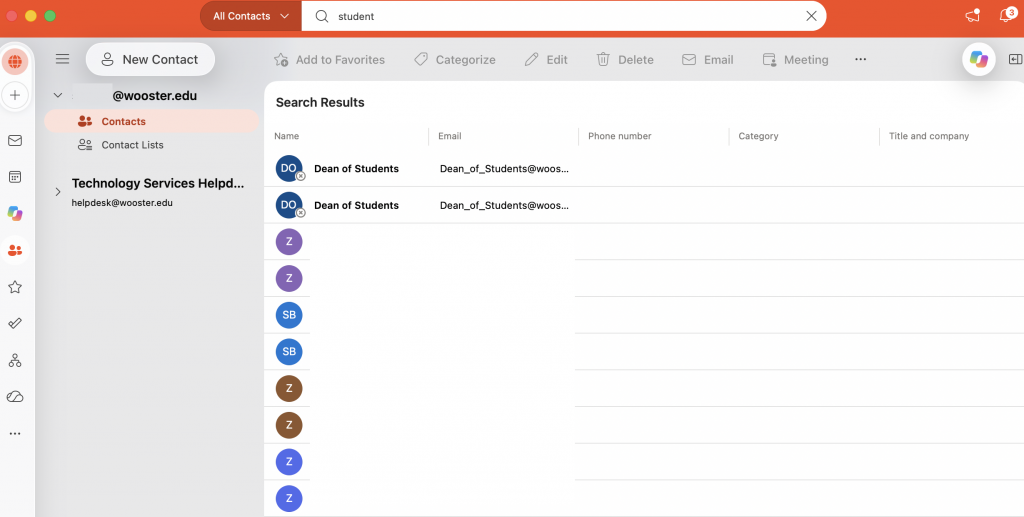
- To see all matches instead, press Return. The full results list appears with columns for Name, Email, Phone number, Category, and Title and company.
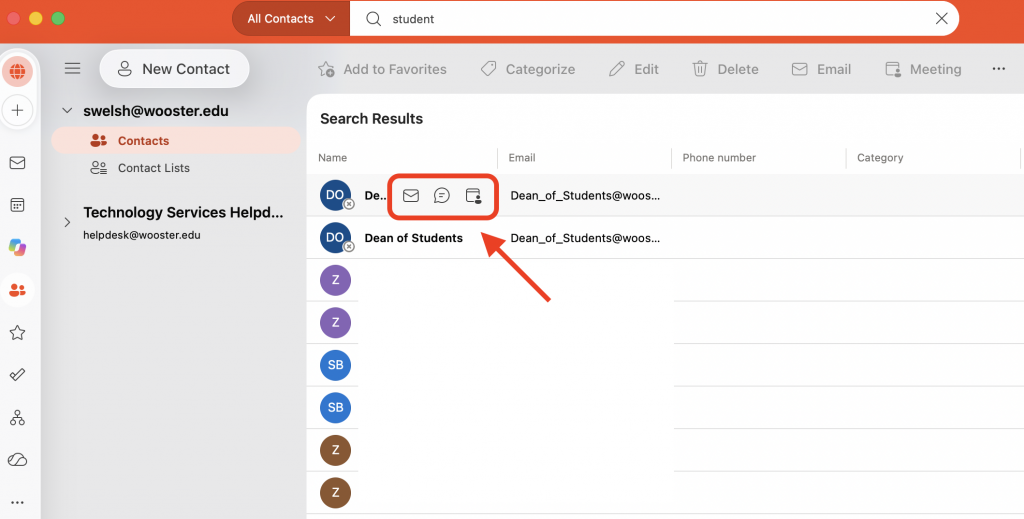
- Hover over any row in the results to reveal quick action icons for Call, Email, Chat, and open contact card.
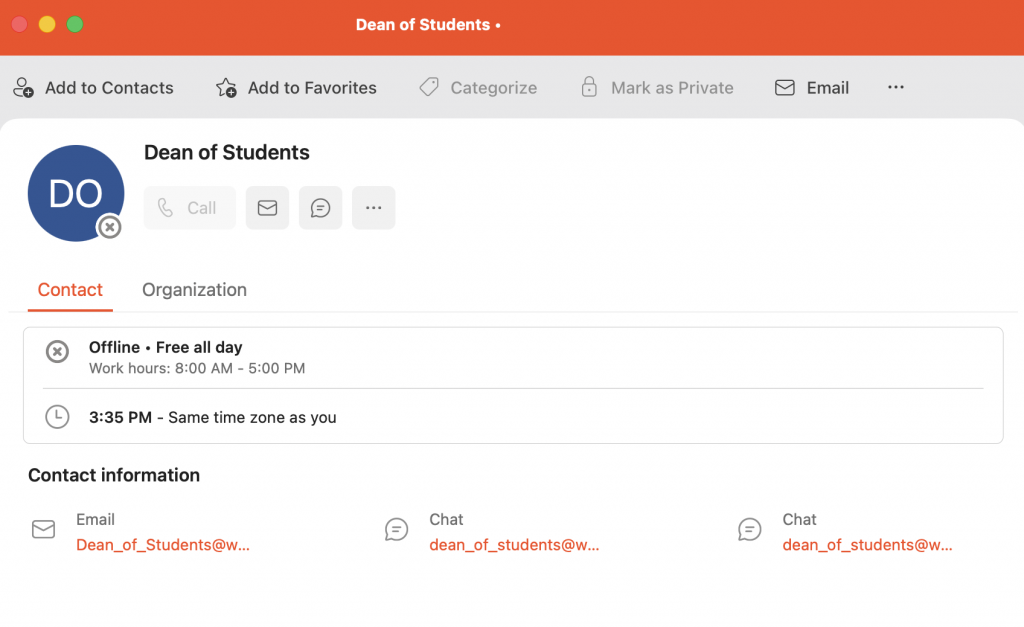
- Click the contact card icon to open the person’s full profile. The Contact tab shows email address, chat address, work phone, work location, job title, department, and business address. The Organization tab shows where the person sits in the campus reporting structure when that information is available.
Outlook on a Phone or Tablet
The Outlook mobile app can search the directory, but the experience is more limited than on a computer. Name and email searches are the most reliable. If you are searching by department, title, or office location, use a computer or Outlook on the web instead.
- Open the Outlook app and make sure your Wooster account is selected.
- Tap the search icon at the top of the screen.
- Type the person’s name.
- Look under the People or Contacts heading in the results. Tap a name to open their contact card.
- From the contact card you can call, email, or start a Teams chat with that person.
What Searching Can Find For You
The directory supports searching on any of the following:
- Name, either first or last
- Position title, such as Professor or Director
- Department, such as Technology Services or Biology
- Office location
A few things worth knowing about your results:
- Searching a department name returns everyone associated with that department, which is often the fastest way to find the right person when you do not have a name.
- Results can include students as well as faculty and staff.
- A person may appear more than once in the results list if their record is matched in more than one way. Opening the contact card confirms you have the right person.
- Not every field is filled in for every person. A blank phone number or office location means that information is not in the College record, not that it is being withheld.
If Someone Is Missing or Their Information Is Wrong
Directory information in Outlook comes from College records. Outlook is displaying that information rather than storing its own copy, so the correction has to be made at the source.
Two things to be aware of before you report a problem:
- Editing a directory result in Outlook, or using Add to Contacts, changes only your own personal copy. It does not correct the campus directory, and other people will still see the original information.
- Recently hired or recently changed records can take time to appear. If the change is very recent, check again before reporting it.
To report a missing entry or incorrect information:
- Contact the IT Help Desk using any of the methods in the Getting Help section below.
- Include the person’s name, what information is wrong or missing, and what it should be.
- The Help Desk will route the request to the office responsible for that record and follow up with you.
Getting Help
If you run into any issue during setup, contact the IT Help Desk.
- Email: helpdesk@wooster.edu
- Phone: 330-287-4357 (330-287-HELP)
- Walk-in: Burton D. Morgan Hall – Help Desk, 4th floor
- Hours: Monday through Friday, 8:30 am to 5:30 pm