
What can we help you with?
Connecting Personal Apple Devices to the Network
This article shows how to connect a personal iPhone, iPad, or Mac to the campus Wi-Fi network. It is for students, faculty, and staff. Do the steps one time for each device. Plan about 15 minutes.
Before You Begin
- Your Wooster username and password.
- Your device passcode (iPhone and iPad) or your Mac password. This is not your Wooster password.
- A place on campus where you can get a Wi-Fi signal.
- Use Safari for the setup. Other browsers can cause problems.
This article is for personal devices only. IT sets up college-owned devices. If you have a college-owned device, contact the Help Desk. For other devices, such as game consoles and smart TVs, use the article for that device.
Connect Your Device
Do the 10 steps in order. Some steps are different for each device. Follow the lines for your device.
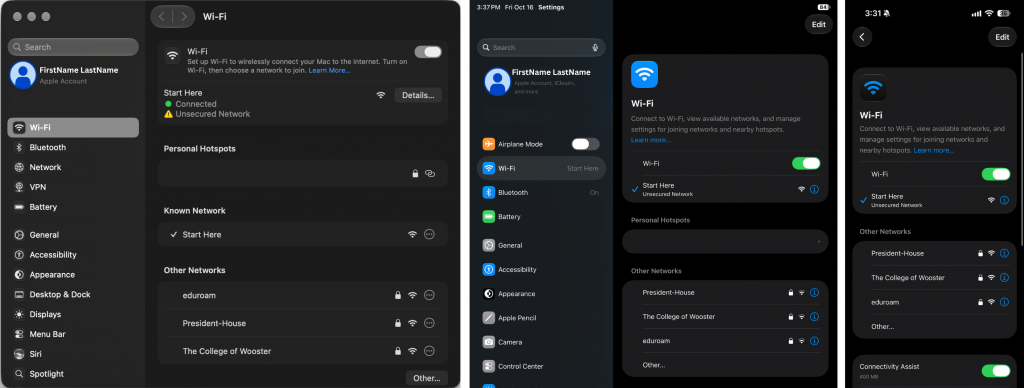
Step 1: Connect to Start Here
Start Here is an open network. It has no password. It gives limited internet access. You use it only for this setup. Your device can show Unsecured Network. This is normal for Start Here.
Mac: Open System Settings. Select Wi-Fi. Select Start Here.
iPhone and iPad: Open Settings. Select Wi-Fi. Select Start Here.
Wait for your device to connect.
Step 2: Go to onboard.wooster.edu
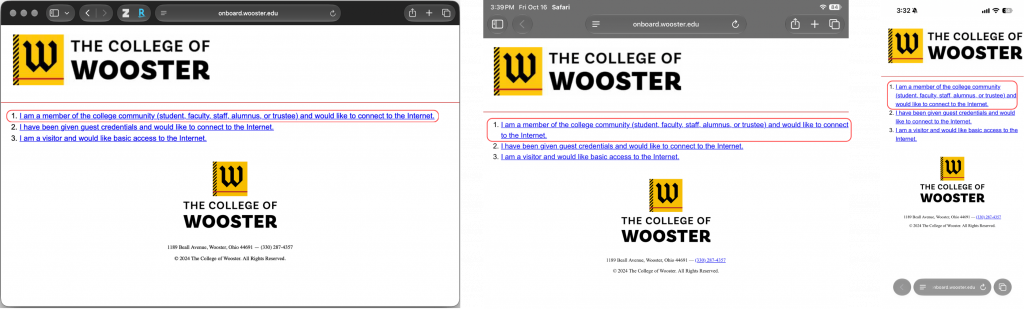
Open Safari. Type onboard.wooster.edu in the address bar. Sometimes the page opens by itself. If it does, go to Step 3.
Step 3: Select the Correct Option
The page shows three options. Select the first option:
I am a member of the college community (student, faculty, staff, alumnus, or trustee) and would like to connect to the Internet.
The other options are for other uses. Do not select them.
Step 4: Log In with Your Wooster Credentials
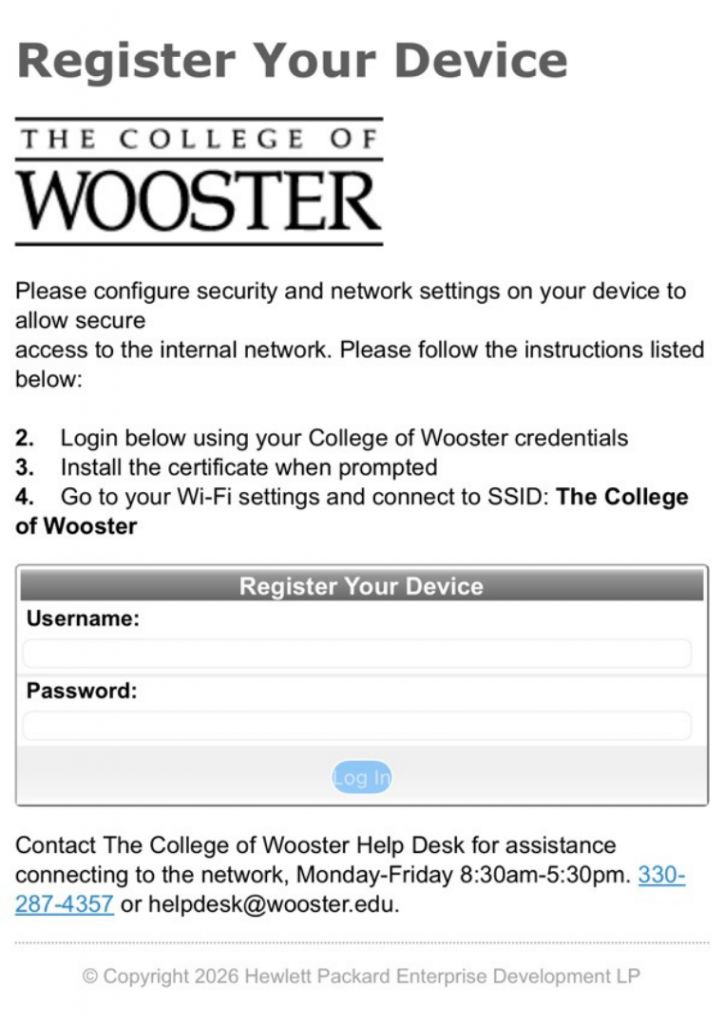
Enter your Wooster username and password. Then select Log In.
Your username is everything before @wooster.edu in your email address. Do not type @wooster.edu. For example, if your email address is jstudent28@wooster.edu, your username is jstudent28.
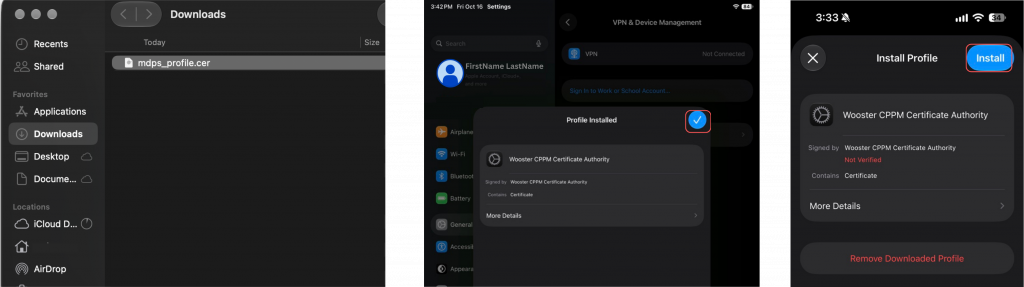
Step 5: Download the Certificate
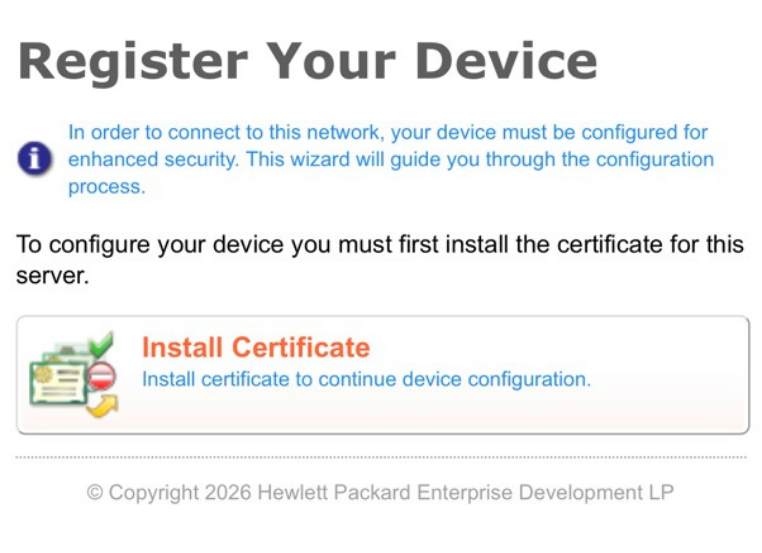
Select Install Certificate. If a message asks to allow the download, select Allow.
Step 6: Install the Certificate
Mac:
- Open the Downloads folder.
- Double-click the certificate file you downloaded. Its name ends in .cer.
- A window asks to add the certificate. Make sure the Keychain is set to login. (Note: Sometimes Mac won’t do anything. Do not worry.)
- Select Add. Enter your Mac password if asked.
iPhone and iPad:
- Open Settings.
- Select Profile Downloaded at the top of the list. You can also select General, then VPN & Device Management.
- Under Downloaded Profile, select Wooster CPPM Certificate Authority.
- Select Install in the top right corner. Enter your device passcode if asked.
- A Warning screen shows. Select Install in the top right corner.
- A message shows. Select Install.
- Select the blue check mark in the top right corner.
Go back to Safari.
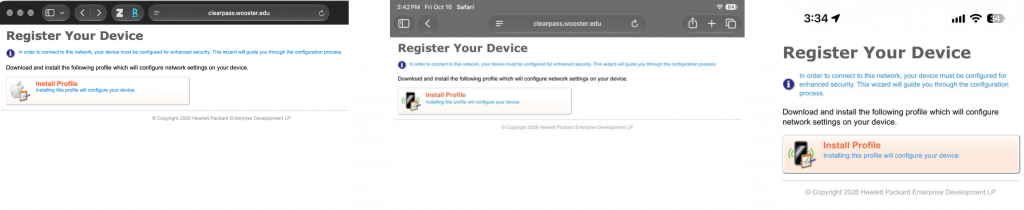
Step 7: Download the Profile
In Safari, select Install Profile. If a message asks to allow the download, select Allow.
This is a second file. It is not the same as the certificate.
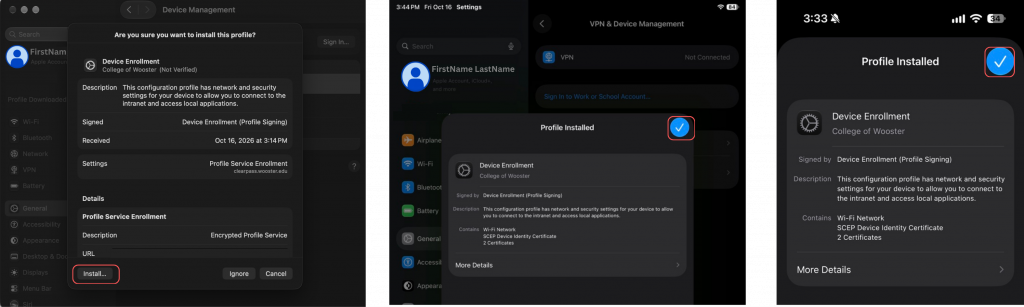
Step 8: Install the Profile
Mac:
- Open System Settings.
- Select Profile Downloaded in the sidebar. If you do not see it, select General, then Device Management. On macOS 14 or earlier, select Privacy & Security, then Profiles.
- Double-click Device Enrollment.
- Select Install. A message asks if you are sure. Select Install again. If a second message shows, select Install again.
- Enter your Mac password if asked.
- Go back to Safari. The page says Device provisioning complete.
iPhone and iPad:
- Open Settings.
- Select Profile Downloaded at the top of the list. You can also select General, then VPN & Device Management.
- Under Downloaded Profile, select Device Enrollment.
- Select Install in the top right corner. Enter your device passcode if asked.
- A Warning screen shows. Select Install in the top right corner.
- A message shows. Select Install.
- Select the blue check mark in the top right corner.
Step 9: Connect to The College of Wooster
Mac: Open System Settings. Select Wi-Fi. Next to The College of Wooster, select Connect. A green dot and the word Connected show when the Mac is on the network.
iPhone and iPad: Open Settings. Select Wi-Fi. Select The College of Wooster. Your device can join this network by itself. If it does, go to Step 10.
Step 10: Forget Start Here
Mac: In the Wi-Fi list, find Start Here under Known Network. Select the three dots next to it. Select Forget This Network. Select Remove to confirm.
iPhone and iPad: In the Wi-Fi list, find Start Here under Known Network. Select the information icon (a blue i) next to it. Select Forget This Network. If a message asks you to confirm, select Forget.
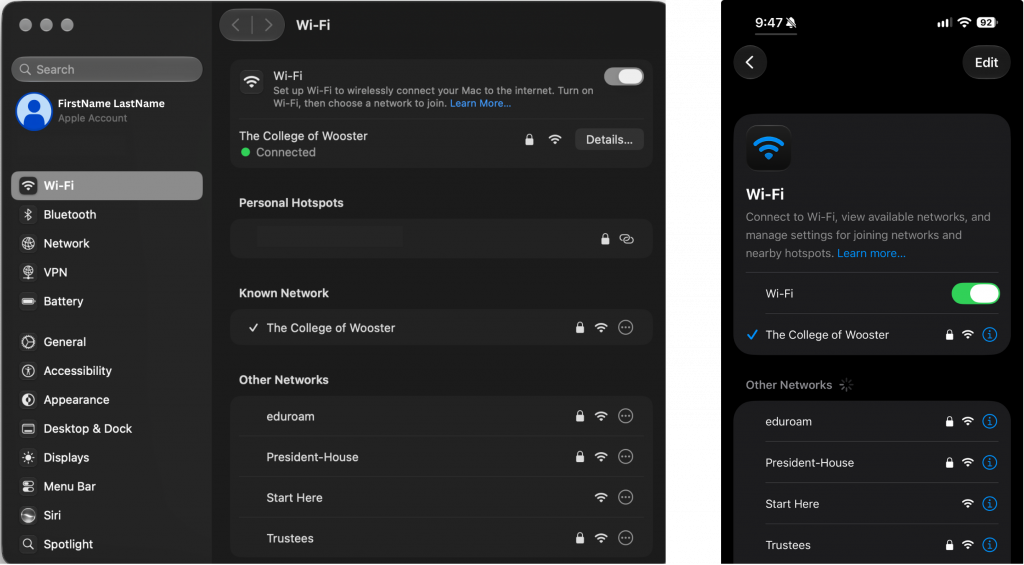
Your device now connects to The College of Wooster on its own when you are on campus.
Getting Help
- Email: helpdesk@wooster.edu
- Phone: 330-287-4357 (330-287-HELP)
- Walk-in: Burton D. Morgan Hall – Help Desk, 4th floor
- Hours: Monday through Friday, 8:30 am to 5:30 pm