
What can we help you with?
Email Setup on a Mobile Device
Wooster email runs on Microsoft 365. The Outlook app is the supported way to get your Wooster email, calendar, and contacts on a phone or tablet. This article covers the Outlook app on Android, iPhone, and iPad.
Time: about five minutes.
Before You Begin
- Know your Wooster email address and password.
- Have your multi-factor authentication method available, since you may be prompted to verify your sign-in.
- Connect to Wi-Fi or a cellular network.
Install Outlook and Add Your Account
The process is nearly identical on Android, iPhone, and iPad. The only difference is which app store you use.
- Open the Google Play Store (Android) or App Store (iPhone/iPad).
- Search for Microsoft Outlook.
- Install Outlook.
- On iPhone or iPad, you may be prompted for your Apple Account password, Face ID, or Touch ID.
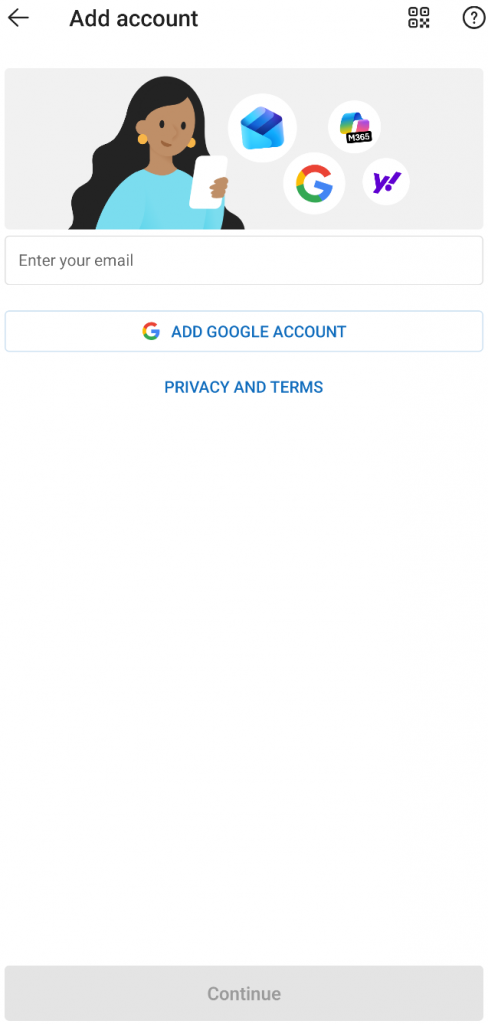
- Open Outlook.Enter your Wooster email address.Tap Add Account.
- Enter your Wooster email address.
- Tap Add Account.
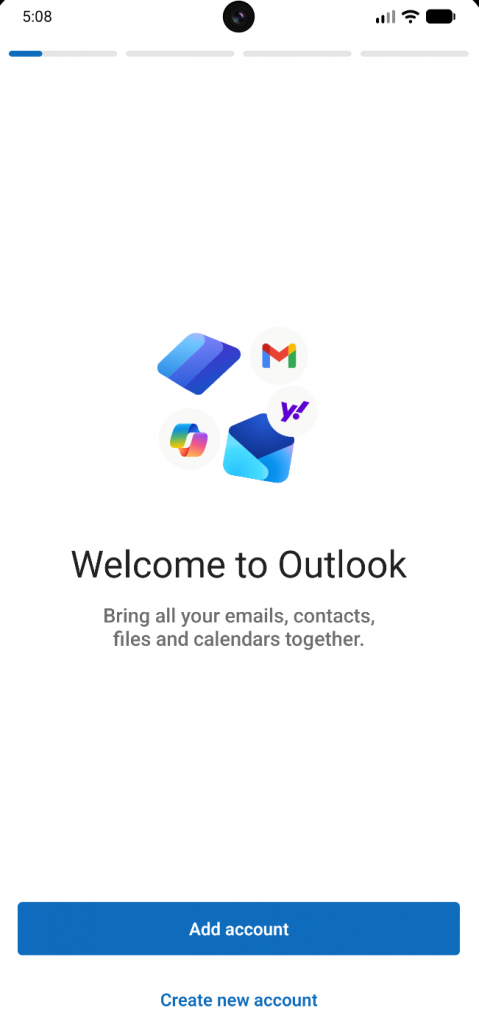
- Enter your password on the Wooster sign-in page, then tap Sign In.
- Complete multi-factor authentication if prompted.
- If Outlook offers to add another account, tap Maybe Later.
- Choose whether to allow notifications.
If Outlook Is Already Installed
Use this section if Outlook is already on your device with another account.
- Open Outlook.
- Tap your profile picture or initials in the top left.
- Tap the Settings gear.
- Tap Add Account. On some versions this reads Add Mail Account.
- Enter your Wooster email address and continue from step 6 above.
Confirm Your Email Is Working
Open Outlook and confirm your inbox loads. Mail may take a few minutes to appear the first time.
Getting Help
If you run into any issue during setup, contact the IT Help Desk.
- Email: helpdesk@wooster.edu
- Phone: 330-287-4357 (330-287-HELP)
- Walk-in: Burton D. Morgan Hall – Help Desk, 4th floor
- Hours: Monday through Friday, 8:30 am to 5:30 pm