
What can we help you with?
Forgotten and Expired Passwords
Use this article if you are locked out of your Wooster account or if your password has expired and you need to set a new one. If you do know your current password and simply want to change it, use the Change Your Wooster Password article instead.
Which Method Applies to You?
The College is moving to a new password reset system. Which one you use depends on your group. Read both descriptions and follow the matching method below.
Method A: Use Microsoft Password Reset if You Are…
- a member of the graduating class of 2030 and beyond, or
- a faculty or staff member who has already set up the 2 different multi-factor authentication methods.
Method B: Use mypassword.wooster.edu if You Are…
- a member of the graduating class of 2027, 2028, or 2029, or
- anyone who has not yet set up the 2 different multi-factor authentication methods.
Method A: Microsoft Password Reset (Forgotten or Expired)
Use Method A for both a forgotten password and an expired password
Whether you forgot your password or it expired, the steps are exactly the same. Microsoft’s reset site handles both the same way, so there is only one set of steps to follow below.
Method A is for the graduating class of 2030 and for faculty or staff who have set up 2 different multi-factor authentication methods. It requires that you previously registered a way to verify your identity, such as the Microsoft Authenticator app or a backup email address. If you have none registered, skip to Getting Help and contact the Help Desk.
Reset Your Password
These steps work whether you forgot your password, it expired, or you are otherwise locked out. The site treats all of these the same way: you verify your identity, then set a new password.
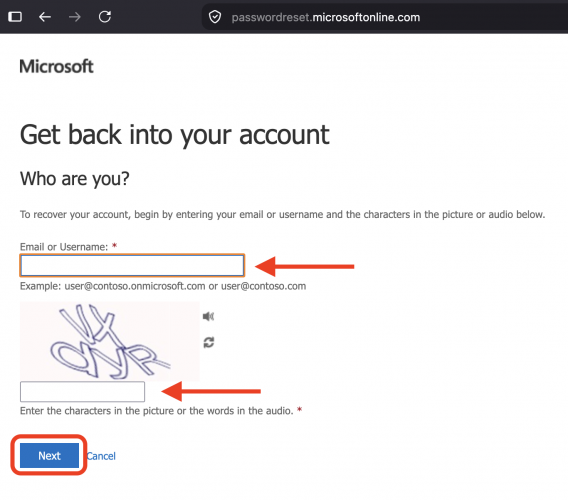
- Go to passwordreset.microsoftonline.com. You can also use the short link aka.ms/sspr. You will see a page titled Get back into your account.
- Enter your full Wooster email address, type the characters shown in the picture to prove you are not a robot, and click Next.
- Select I forgot my password, then click Next.
- Choose a verification method you registered. Pick whichever you have available: approve a request in the Microsoft Authenticator app, enter a code from the Authenticator app, or email my alternate email. Follow the prompt for the method you chose.
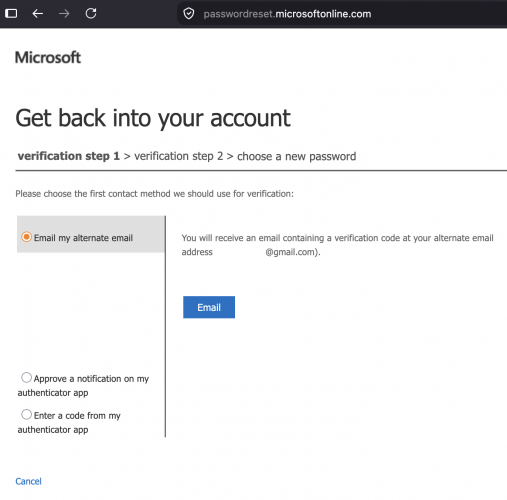
If you use your backup email
Open your alternate email in another tab, find the 6-digit code Microsoft sent, enter it on the reset page, and continue. If you no longer have access to any of your registered methods, contact the Help Desk.
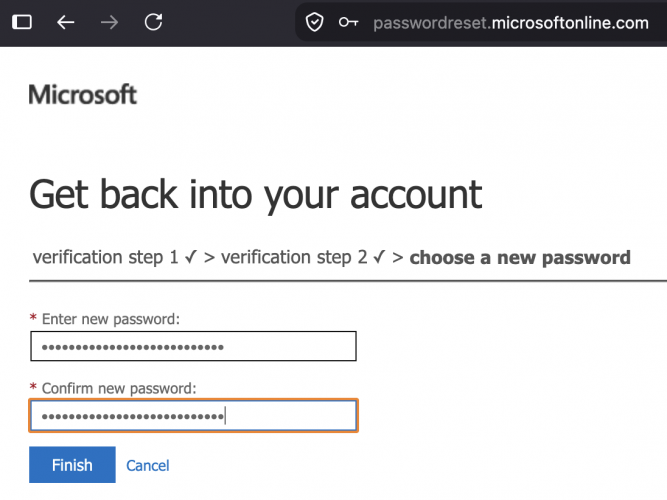
- Once your identity is verified, enter a new password and type it again to confirm. Choose something you have not used before, then continue.
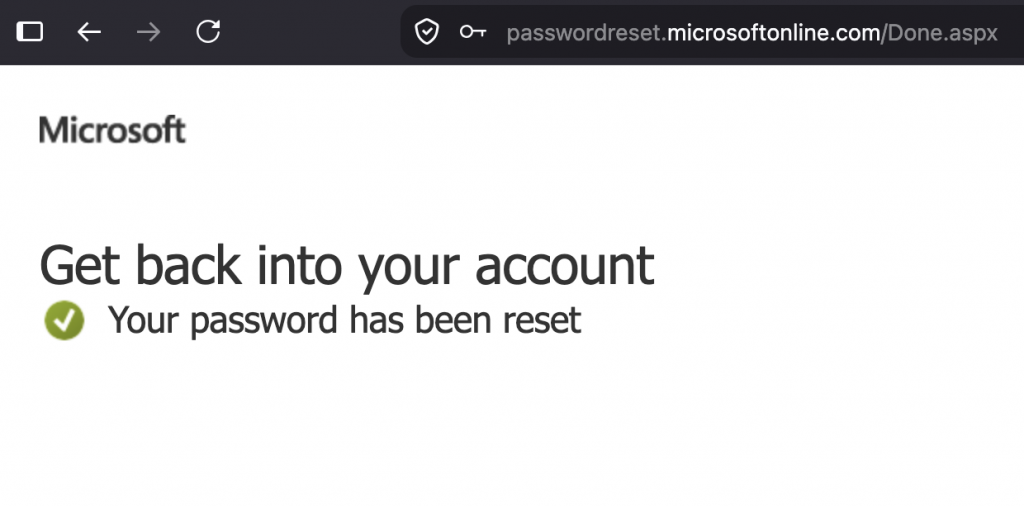
- When you see Your password has been reset, you are done. Sign in with your new password.
Method B: mypassword.wooster.edu
Use this method for the graduating classes of 2027, 2028, and 2029, and anyone who has not yet set up 2 different multi-factor authentication methods.
Do not change your password to one you have used before. Reusing a previous password can cause sign-in problems that only IT can fix.
- Go to mypassword.wooster.edu and click Forgotten Password at the bottom of the page.
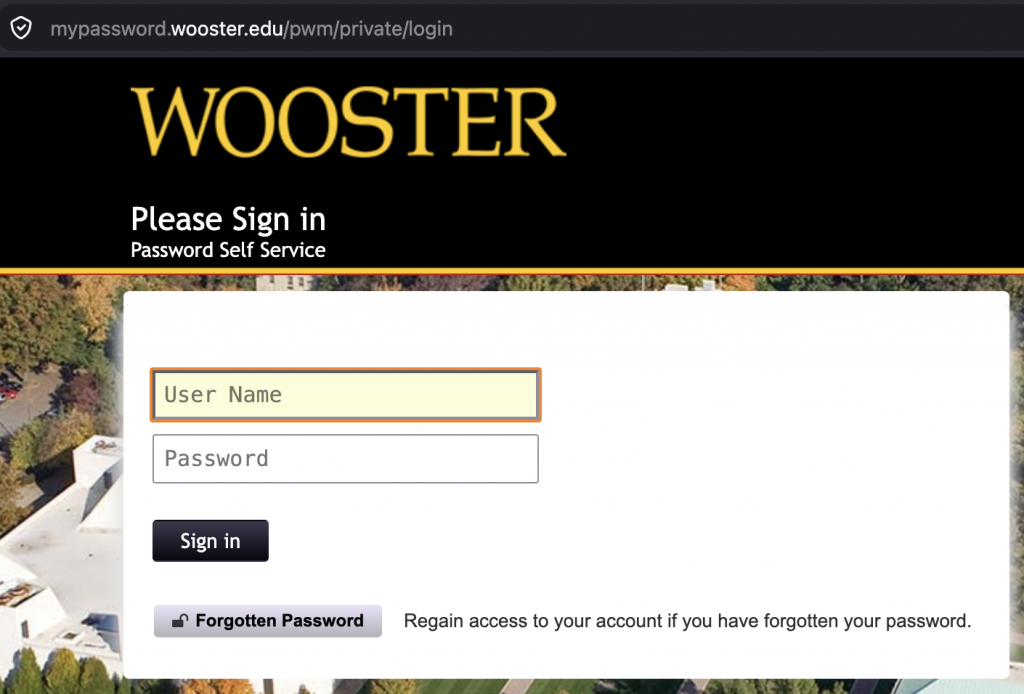
- Enter your Wooster email address and your last name in the fields provided.
- Answer your security questions.
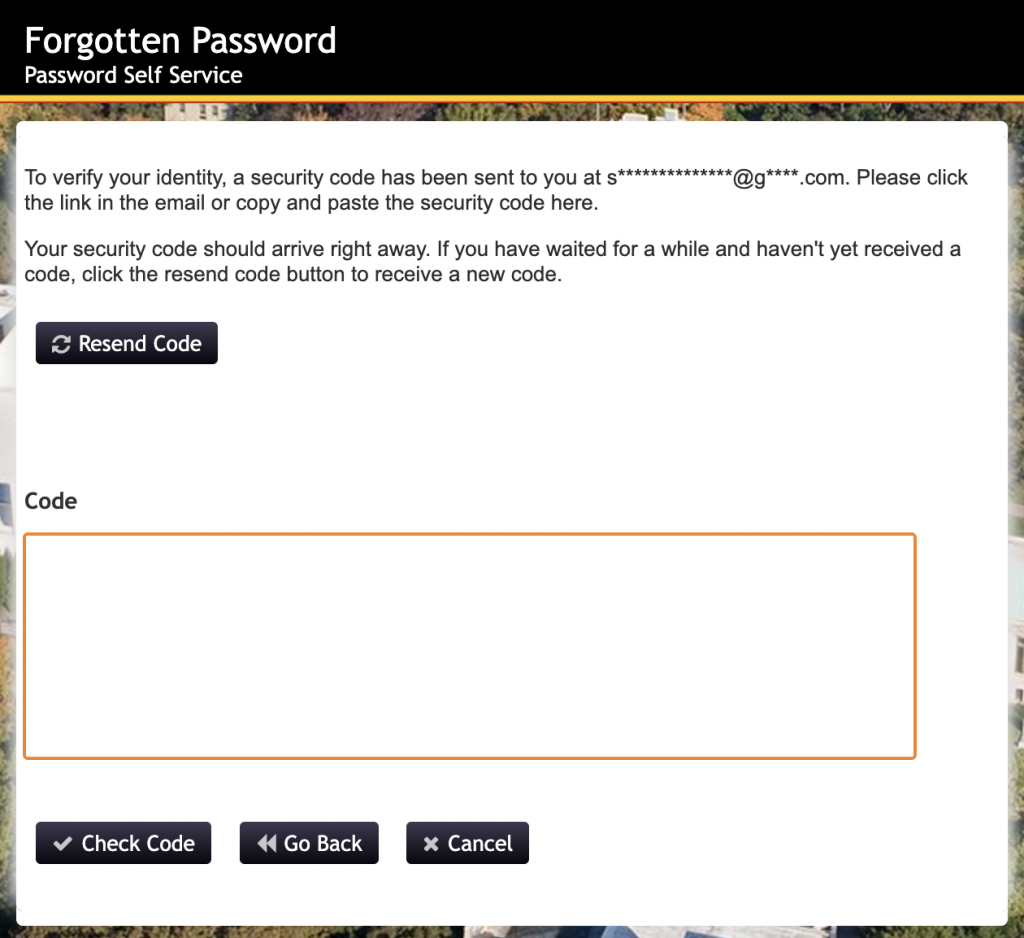
- When prompted for a verification code, open your alternate email in another tab, find the code, then enter it and click Check code.
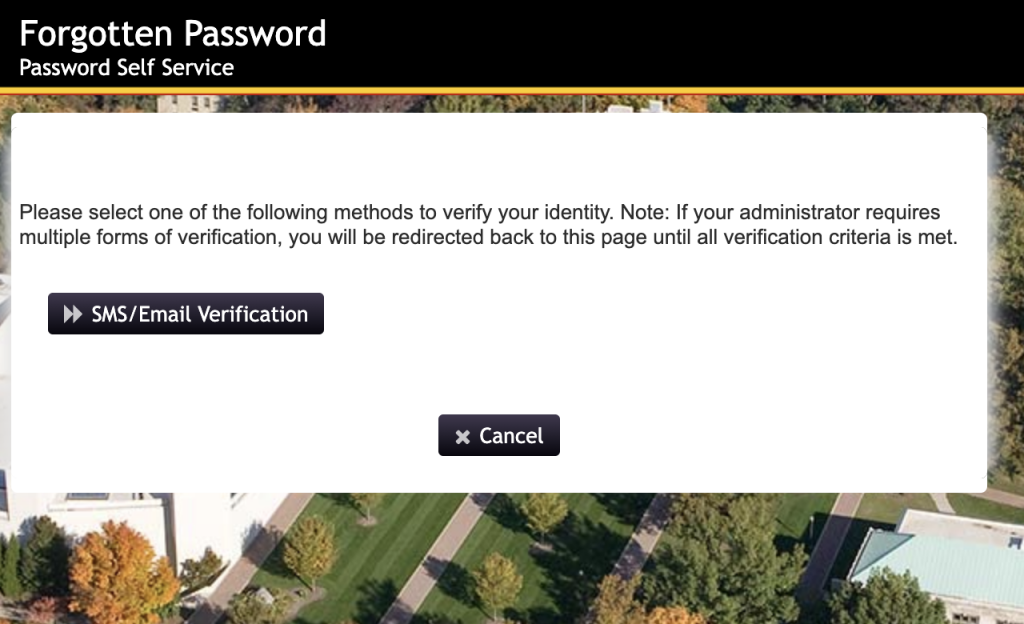
- After verification, a new password is emailed to your alternate email address. This is a temporary, automatically generated password.
- Return to mypassword.wooster.edu and sign in with your username and that temporary password.
- Click Change Password and set a password you will remember. Choose something you have not used before.
Getting Help
After you reset or renew with either method
Sign in again with your new password everywhere you use your Wooster account, including your phone’s mail app and any saved logins. If a device keeps failing with the old password, remove and re-add the account there. It can take a few minutes for the new password to take effect everywhere.
A College Mac or Windows computer set up before March 2026 is domain-joined, and its local login may still expect your old password after a reset. If your computer won’t accept the new password at the login screen, sign in with your OLD password first. Once you’re logged in and connected to the campus network, the computer will sync to your new password. Newer Macs managed with Intune do not have this issue. If the password still won’t update, contact the Help Desk.
If you have no registered verification methods, cannot complete verification, or still cannot sign in, contact the IT Help Desk. They can verify your identity another way and help you regain access.
- Email: helpdesk@wooster.edu
- Phone: 330-287-4357 (330-287-HELP)
- Walk-in: Burton D. Morgan Hall – Help Desk, 4th floor
- Hours: Monday through Friday, 8:30 am to 5:30 pm