
What can we help you with?
Connecting Other Wireless Devices to Our Network
Smart TVs, game consoles, streaming devices, smart speakers, and wearables cannot display a sign-in page, so they connect a different way. You register the device by its wireless MAC address, wait, then join it to the Start Here network. Plan about thirty minutes, most of which is a required waiting period.
What to Expect
- These devices stay on Start Here. They will not join The College of Wooster, and that is correct. Do not try to move them.
- There is a required twenty minute power-down in the middle of the process. Set aside the time before you begin.
- Personal printers are not registered this way. We do not recommend bringing a printer to campus. If you do, connect it to your computer with a USB cable.
Find Your Device’s MAC Address
A MAC address is a twelve character hardware ID that looks like 00-1A-B2-34-56-CD. Some devices label it Wi-Fi Address, Physical Address, or Wireless ID. If your device lists both a wired and a wireless address, use the wireless one.
| PlayStation 5 | Settings > System > Console Information |
| PlayStation 4 | Settings > System > System Information |
| Xbox Series X, S, and Xbox One | Settings > General > Network settings > Advanced settings |
| Nintendo Switch | System Settings > Internet |
| Apple TV | Settings > General > About. Listed as Wi-Fi Address. |
| Roku | Settings > Network > About. Also printed on the device label. |
| Amazon Fire TV | Settings > My Fire TV >About, then Network |
| Google TV and Chromecast | Settings > System > About, then Status |
| Samsung TV | Settings > Support > About This TV |
| LG TV | Settings > Support > TV Information |
| Amazon Echo | Alexa app > Devices, select the device > About |
| Sonos | Sonos apps > Settings > System > About My System |
| Anything else | Check the label on the device or its power adapter, or search the manufacturer’s support site for MAC address |
Menu names vary by model and software version. If a path above does not match your device, look for a Network, About, or Status screen.
Register the Device
- Go to clearpass.wooster.edu.
- Sign in with your Wooster username and password. Do not include @wooster.edu.
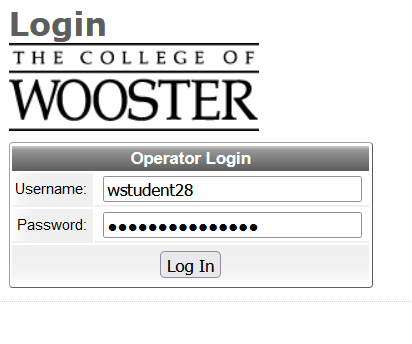
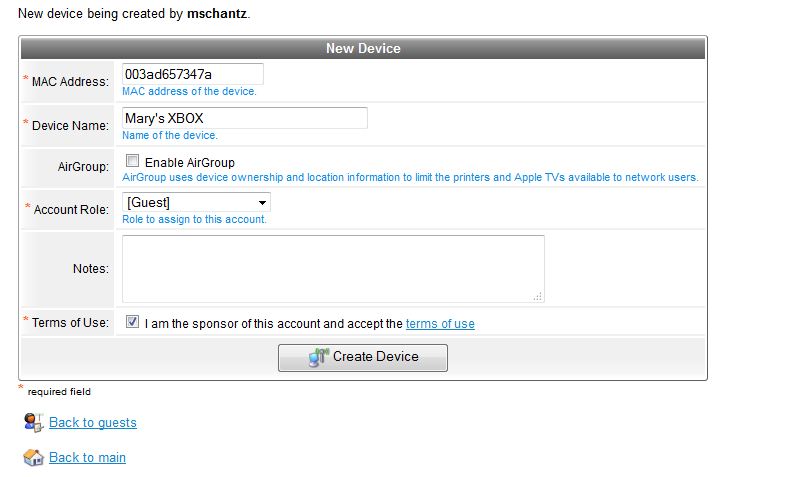
- Select Create Device.

- Fill in the required fields. Give the device a name you will recognize later, such as Room 214 Roku.
- Check the box for Enable AirGroup.
- Select Create Device.
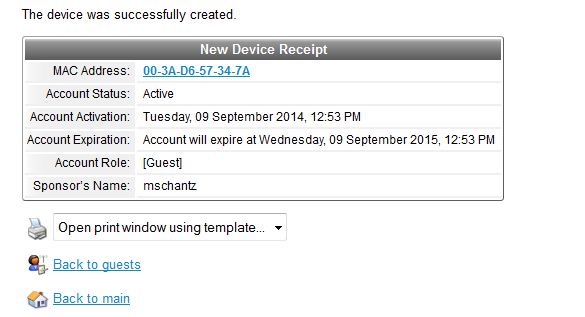
- A confirmation screen appears. Your device is now registered.
Turn the Device Off and Wait
Do not skip this step. If the device tries to connect before registration finishes processing, it will fail and you will have to register it again.
- Shut the device down completely and unplug it. It should have no power at all.
- Leave it unplugged for twenty minutes.
Connect the Device
- Plug the device back in and power it on.
- Open its Wi-Fi or network settings.
- Select the Start Here network. There is no password.
- Leave the device on Start Here. Do not select The College of Wooster.
If It Does Not Work
- The device will not connect after the wait: check the MAC address you registered against the one on the device. A single wrong character is the most common cause, along with registering the wired address instead of the wireless one.
- Your device uses a private or random Wi-Fi address: many newer devices change their MAC address automatically, which means the registered address no longer matches. Look in the device’s Wi-Fi settings for Private Address, Randomized MAC, or similar, turn it off, then check the MAC address again and register the correct one.
- You registered the wrong address: sign back in to clearpass.wooster.edu, delete the incorrect entry, and register the device again.
- It connects but has no internet: confirm the full twenty minutes passed with the device fully powered off, not just asleep or in standby.
- It worked before and stopped: the device may have changed its Wi-Fi address. Check for a private address setting as described above, then contact the Help Desk if it still fails.
- You cannot find the MAC address anywhere: bring the device or its model number to the Help Desk and we will look it up with you.
Getting Help
- Email: helpdesk@wooster.edu
- Phone: 330-287-4357 (330-287-HELP)
- Walk-in: Help Desk, 4th floor