
What can we help you with?
Logging in and Finding Your Moodle Course
These steps cover signing in to Moodle and finding your courses. The article serves both students and faculty. Where the two differ, the line tells you which applies to you.
Logging In
Moodle uses a separate site for each academic year which is why a course from a previous year will not appear on the current site. The URL includes the year. eg. 2026-27 course are available at https://moodle-2627.wooster.edu/. The address moodle.wooster.edu directs you to the current year’s site, so that is the one to use.
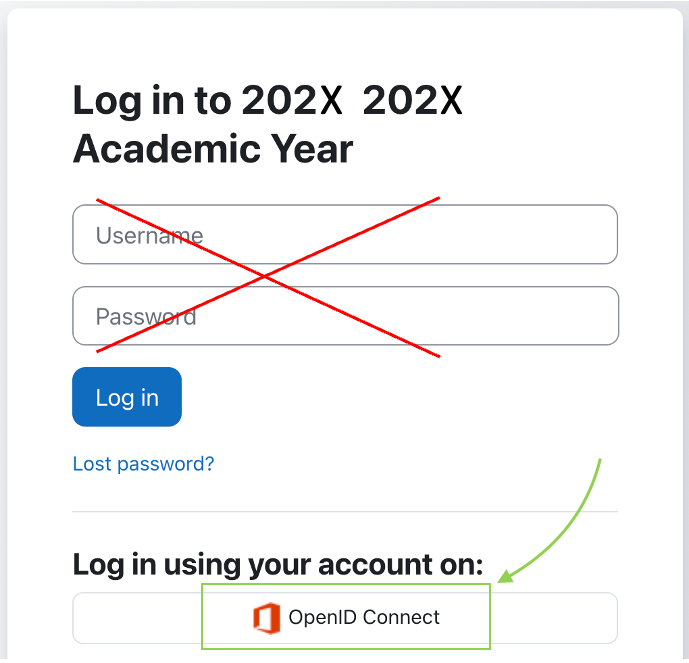
- Go to moodle.wooster.edu.
- Select Log in in the upper right corner.
- Select the OpenID Connect button.
- Sign in with your Wooster username and password.

Finding Your Courses
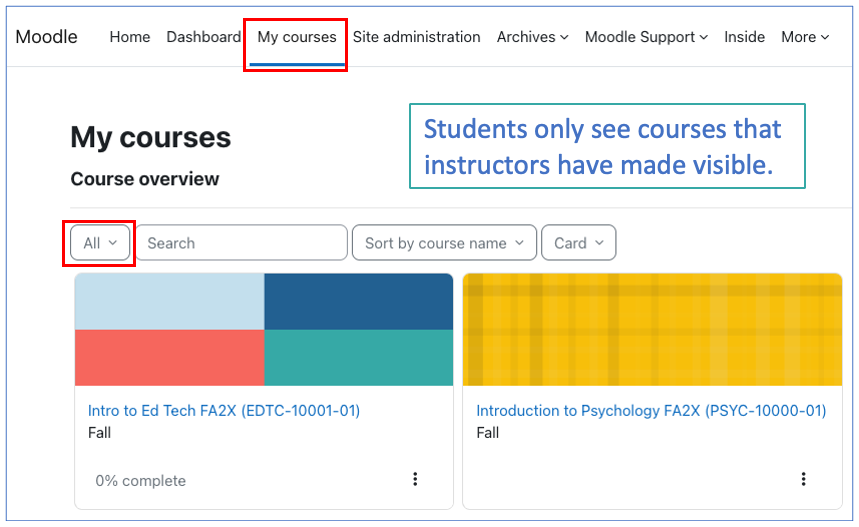
- After signing in, you land on the Dashboard.
- Select the My courses tab. Your courses appear as tiles.

- Students: you can only see courses an instructor has made visible.
- Everyone: the Course Overview block has a filter that hides courses depending on the option selected. If something is missing, that filter is the first thing to check.
If a Course Is Missing
Work through these three checks in order. Each one is explained in the sections that follow.
- Set the Course Overview filter to All.
- Confirm the enrollment exists in Colleague Self-Service.
- Confirm the instructor has made the course visible.
Adjust the Course Overview Filter
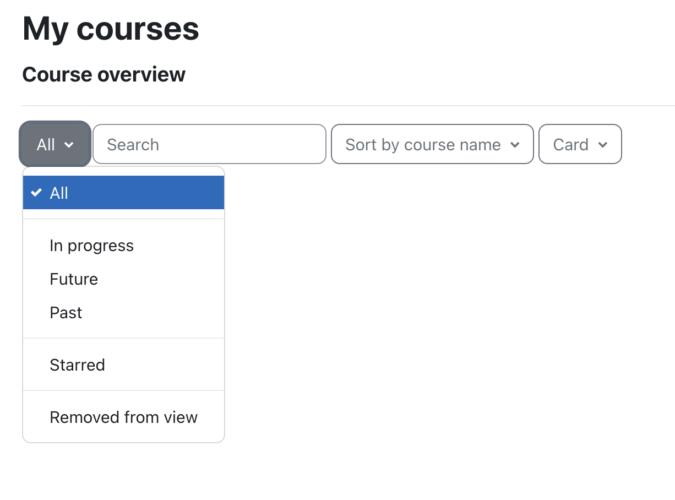
- In the Course Overview block, select the dropdown menu.
- Choose All. This is the setting to use any time a course is hard to find.
The In progress, Future, and Past filters are driven by the course start and end dates, so a course you are enrolled in can be filtered out of view:
- The start date is usually the Monday of the first week of the semester, even if classes begin later that week.
- The end date is usually after final exams.
Check Colleague Self-Service
If setting the filter to All did not help, confirm the enrollment exists upstream of Moodle.
- Go to ellucianselfservice.wooster.edu/Student.
- Look for the course. Faculty should also confirm the student appears on the roster.
If the course is listed in Self-Service
- Students: the course may be enrolled but not yet visible. Continue to the next section.
- Everyone: allow 24 hours for a recent add to appear in Moodle.
- If more than 24 hours have passed and Self-Service is correct, contact the Help Desk.
If the course is not listed in Self-Service
This is an enrollment question rather than a Moodle question. Contact the Registrar:
- Phone: 330-263-2366 (on campus, X2366)
- Email: registrar@wooster.edu
Check Whether the Course Is Visible
All Moodle courses are hidden from students by default until the instructor makes them visible. Anyone can check whether a course is visible, including people who are not enrolled and not signed in.
- Go to moodle.wooster.edu, or to your Dashboard if you are already signed in.
- Open the block drawer on the right side of the page.
- In the Filtered course list block, select the semester.

- Courses that have been made visible are listed.
- Students: if your course is not listed, check with your instructor to see whether they plan to use Moodle and intend to make the course visible.
- Faculty: if you are still building a course, have not made it visible, and have switched your role to Student, you will not see it. Select Return to my normal role.
Getting Help
If you run into any issue during setup, contact the IT Help Desk.
- Email: helpdesk@wooster.edu
- Phone: 330-287-4357 (330-287-HELP)
- Walk-in: Burton D. Morgan Hall – Help Desk, 4th floor
- Hours: Monday through Friday, 8:30 am to 5:30 pm