
What can we help you with?
Setting Up Your College of Wooster Account for the First Time
This guide walks you through signing in for the first time, setting up multi-factor authentication (MFA), adding a password reset email, and changing your password. Set aside about 15 minutes and have both your computer and your smartphone with you before you start. You will move back and forth between your computer and your phone, so keep both within reach for the whole process.
Setting Up Multi-Factor Authentication (MFA)
Multi-factor authentication adds a second check when you sign in, so your account stays secure even if someone learns your password.
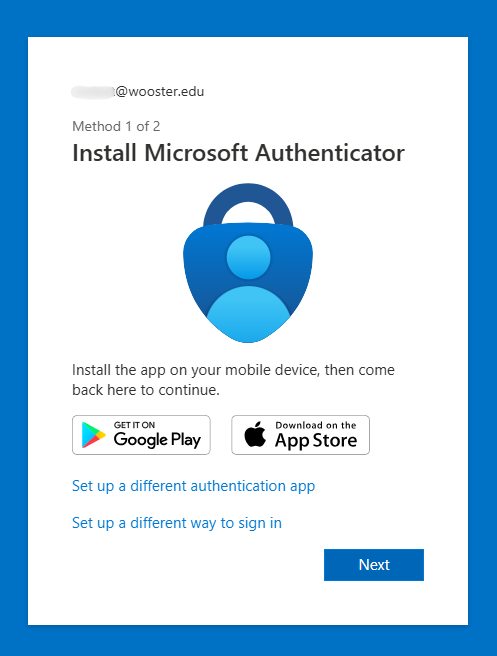
- On your smart phone, download and install the Microsoft Authenticator App from your app store.
- On your computer, open an InPrivate or incognito browser window. This keeps any existing sign-ins from interfering with setup. Go to login.microsoftonline.com.
- Enter your full College of Wooster email address and click Next.
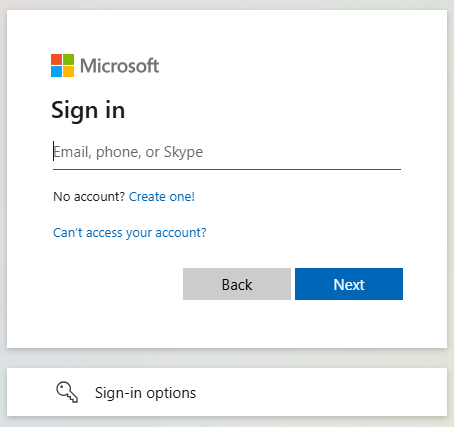
- On The College of Wooster sign in page, enter your full College of Wooster email address and the password provided to you by the college and click “Sign in“.

This branded page is the real Wooster sign-in. If you are asked for your password on a page that does not look like this, stop and check the web address before typing anything.
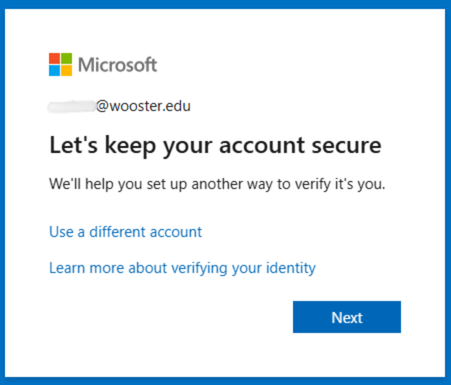
- On the Let’s Keep your account secure screen, click Next.
- On the Install Microsoft Authenticator screen, click Next.
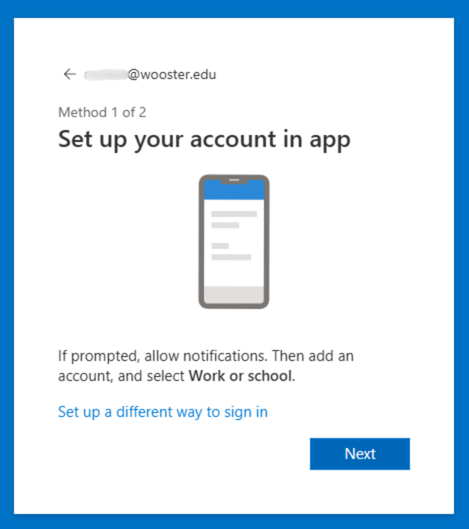
- Open the Microsoft Authenticator app on your phone. Tap the + in the top corner, choose Work or school account, then choose Scan a QR code.
- On your computer, the Scan the QR code screen appears. Scan that code with your phone.
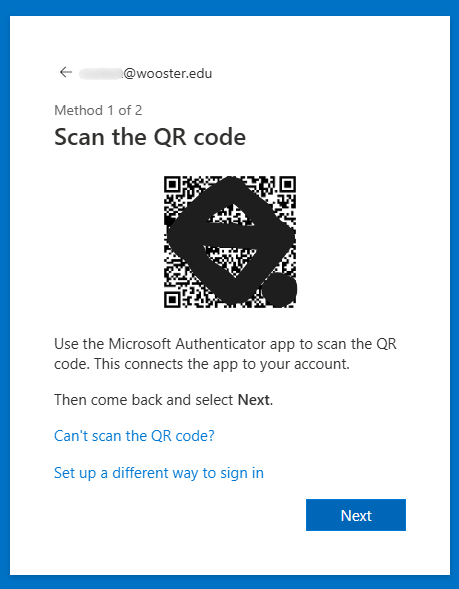
- Your phone shows a number to confirm the connection. Enter it when prompted, then wait for the success screen on your computer.
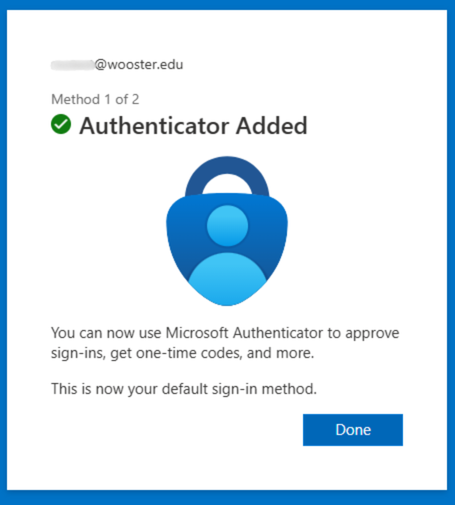
- On the Authenticator Added screen, click Done.
Setting Up a Password Reset Email
This step adds an alternate email so you can reset your own password later if you forget it. This is Microsoft Self-Service Password Reset (SSPR).
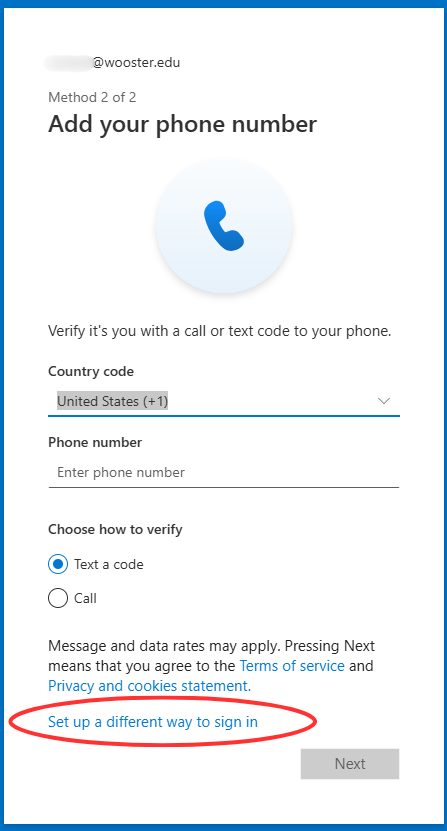
- After the Authenticator is added, you may be prompted to set up a phone number. Instead, click Set up a different way to sign in and choose Email.
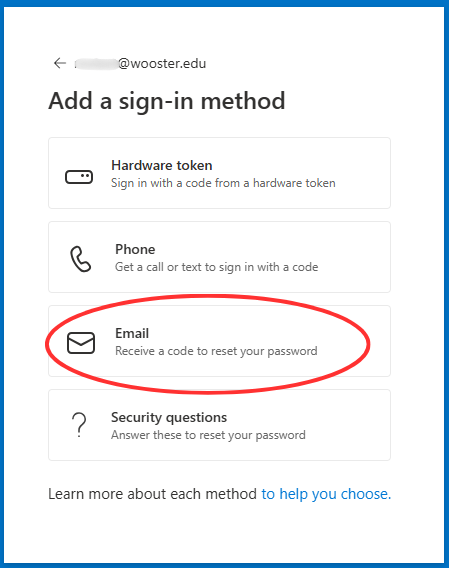
- Enter an alternate email address, not your Wooster address, and click Next.
- Microsoft emails a code to that address. Enter the code in the field provided and click Next.
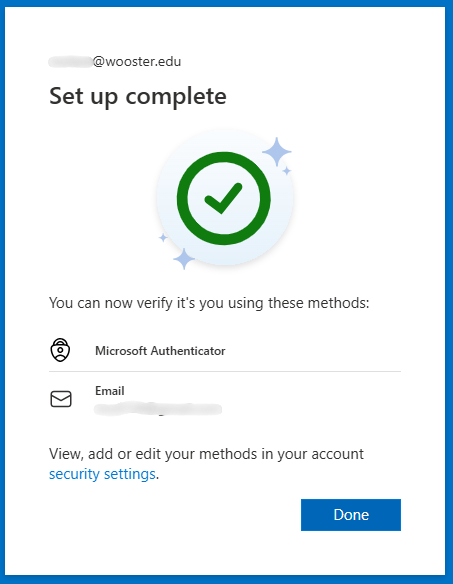
- On the Email Added screen, click Done.
- When the Set up complete screen appears, click Done.
Changing Your Password
Finally, replace the temporary password the College gave you with one only you know.
- In the InPrivate or incognito browser you already have open, open a new tab and go to myaccount.microsoft.com. Because you are still signed in from setup, it should open without asking you to sign in again. If it does ask, use your Wooster email and your temporary password, and approve the Microsoft Authenticator prompt on your phone.
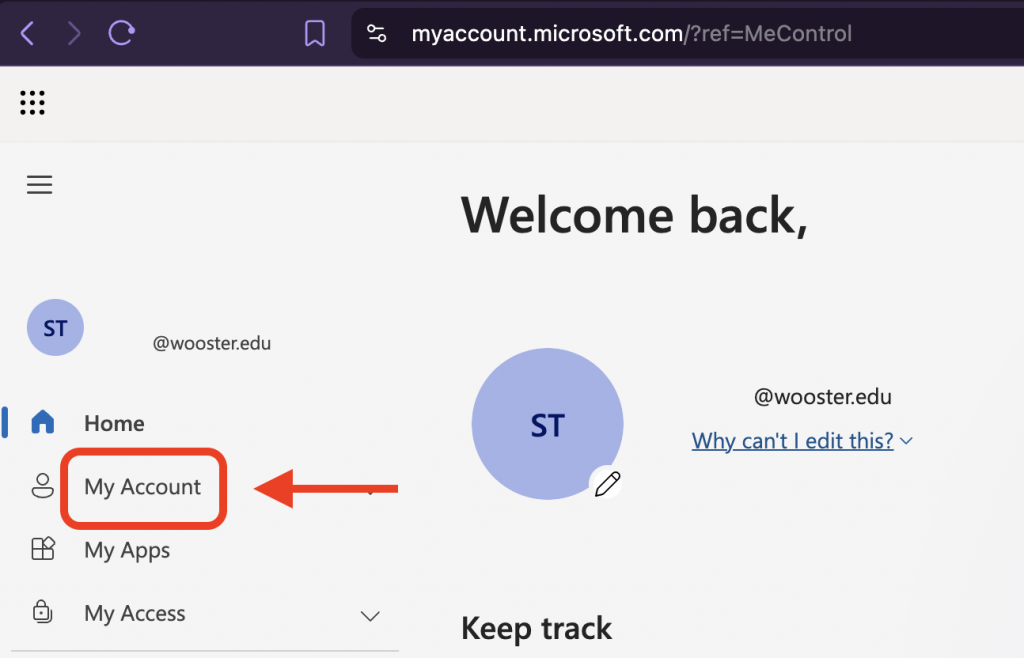
- Select My account.
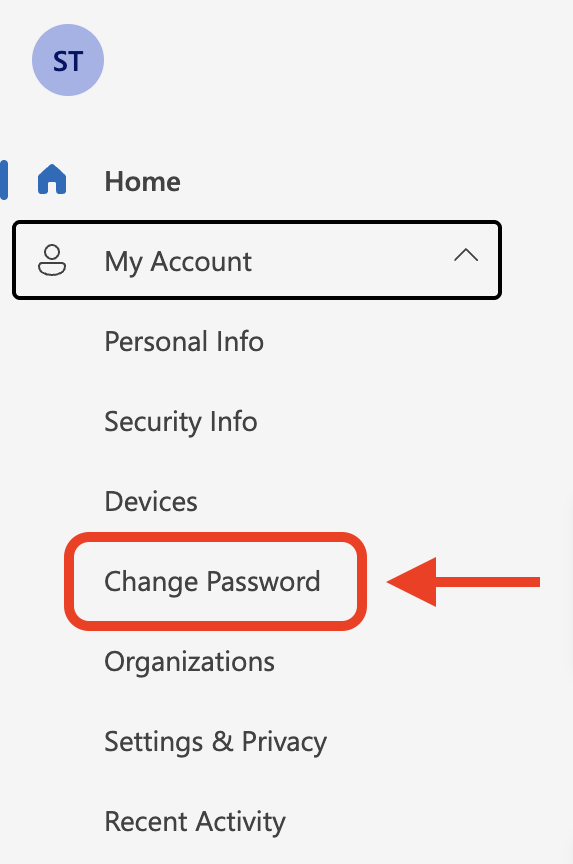
- On the account page, click Change password.
- Enter a new password, then enter it again to confirm. You may also be asked for your current, temporary password on this screen. If that field appears, fill it in before clicking Submit.
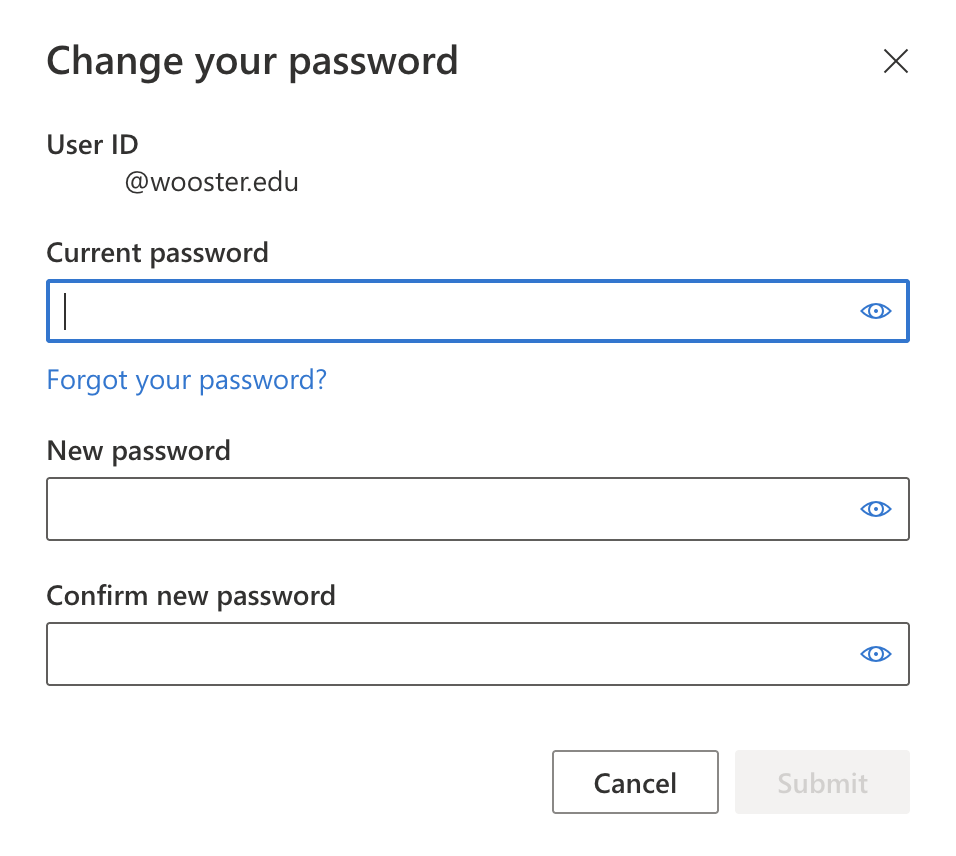
- Click “Submit“.
- When you see Success, password changed, click Done. Your setup is complete.
Getting Help
If you run into any issue during setup, contact the IT Help Desk.
- Email: helpdesk@wooster.edu
- Phone: 330-287-4357 (330-287-HELP)
- Walk-in: Burton D. Morgan Hall – Help Desk, 4th floor