
What can we help you with?
Connecting Android Device to Network
These steps connect an Android phone or tablet to the College of Wooster wireless network. You will need your Wooster username and password, and you will need to be on campus. The process takes about ten minutes and only needs done once per device.
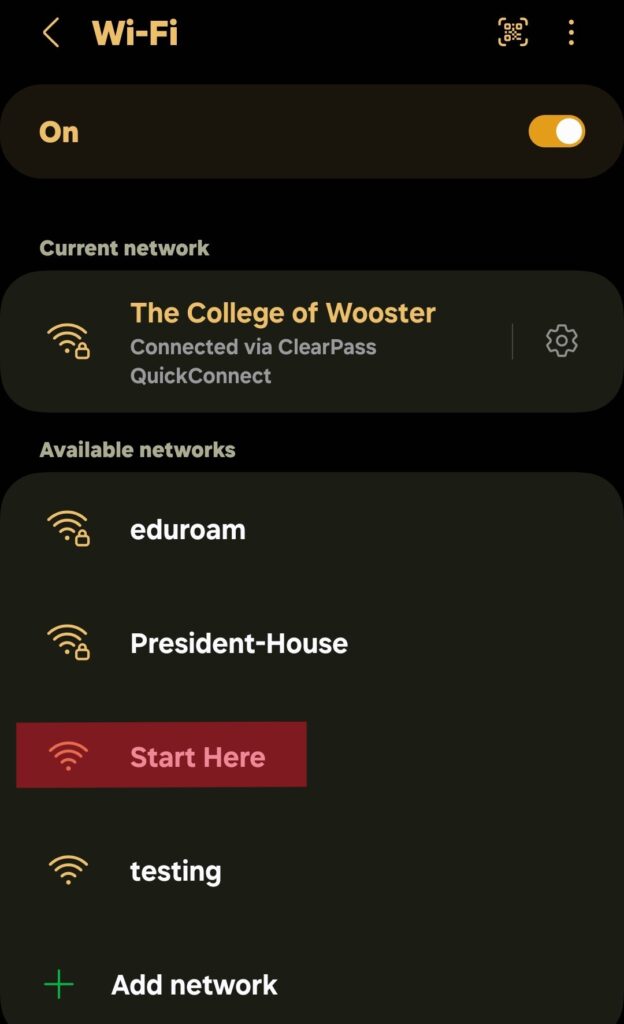
Connect to the Start Here Network
- Open Settings, then Wi-Fi.
- Select the Start Here network.
- Wait for your device to connect. Start Here is an open network, so there is no password.
Many Android devices show a Sign in to network notification at this point. Tapping that notification opens the onboarding page directly and saves you the next step.
Open the Onboarding Page
- Open Chrome and go to onboard.wooster.edu.
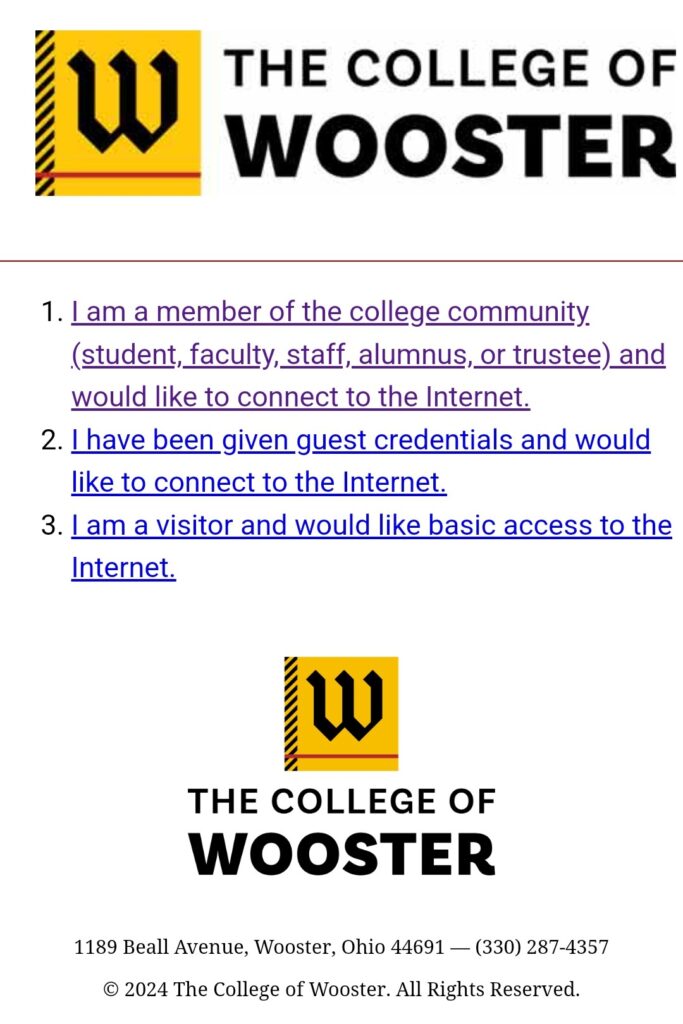
- Select the first link, I am a member of the college community (student, faculty, staff, alumnus, or trustee) and would like to connect to the Internet.
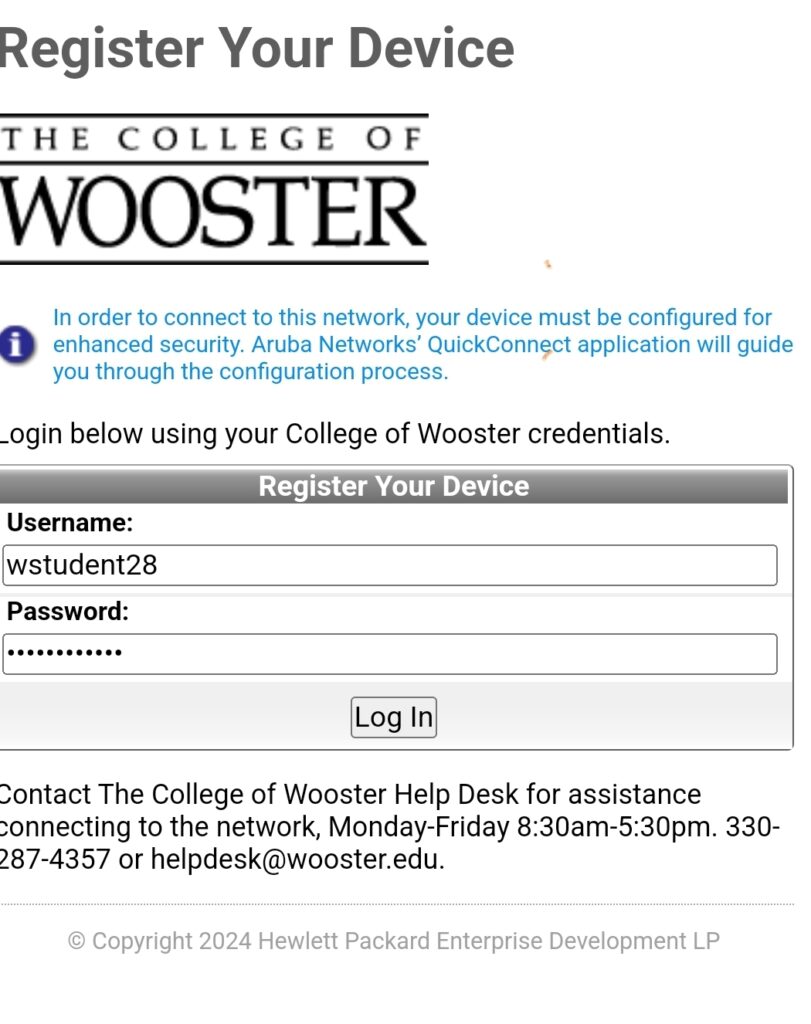
- Sign in with your Wooster username and password. Do not include @wooster.edu.
Install QuickConnect
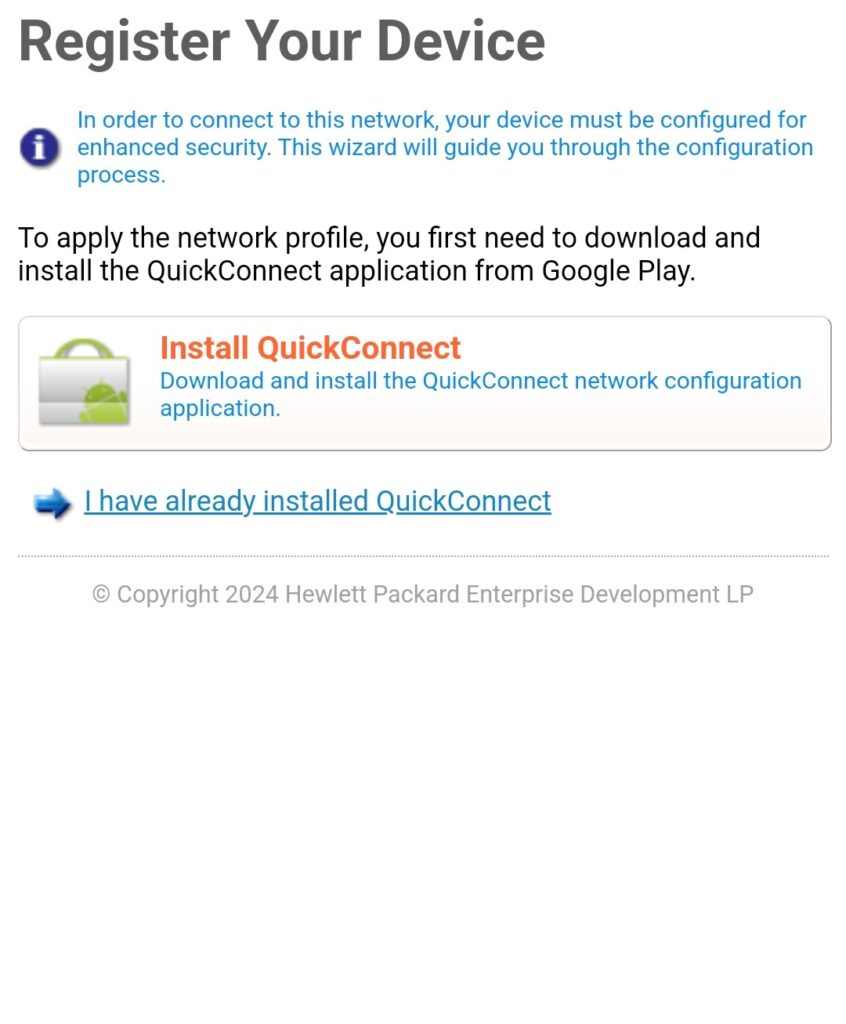
- Select Install QuickConnect. If QuickConnect is already on your device, select I have already installed QuickConnect and move to the next section.
- Google Play opens. Install the app, but do not open it. QuickConnect launches on its own later in the process.
- Return to Chrome once the install finishes.
Install the Network Profile
- In Chrome, select Install Network Profile.
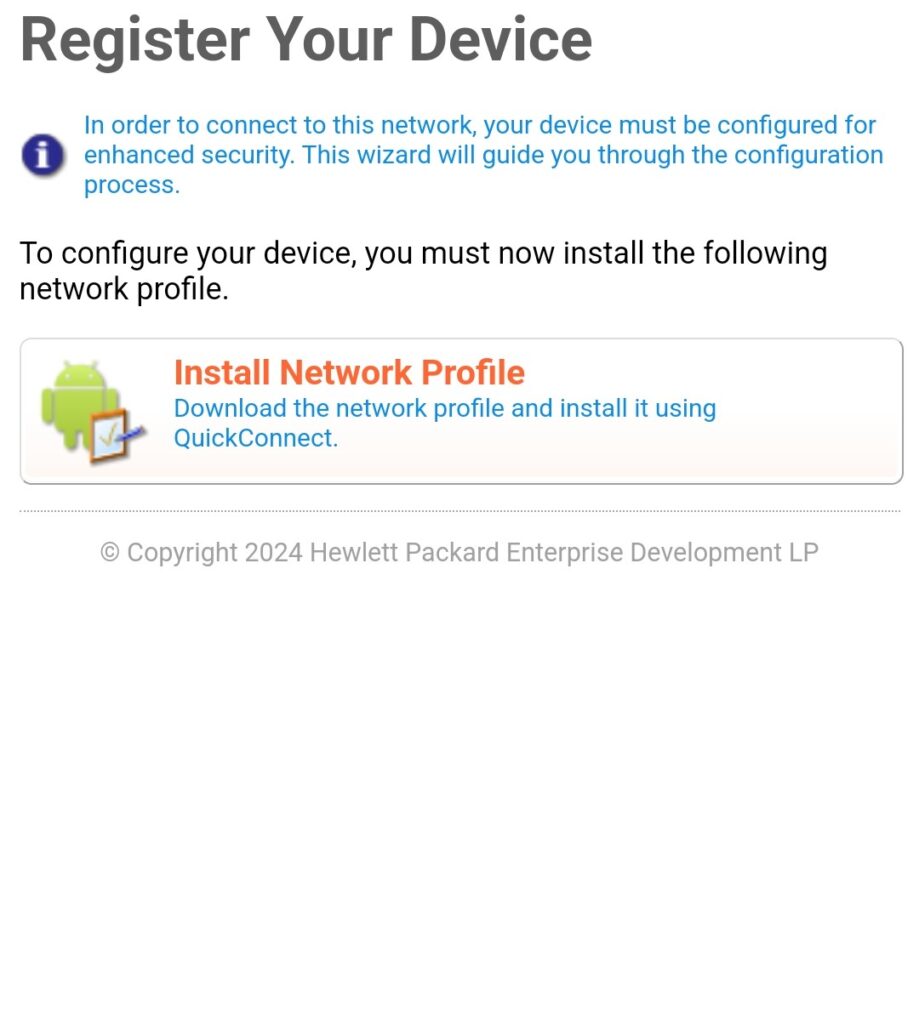
- When the download finishes, select Open.
- QuickConnect opens and sets up your wireless profile. Wait for it to finish.
- Select OK to close QuickConnect. Your device connects to the College of Wooster network automatically.
Forget the Start Here Network
Removing Start Here keeps your device from switching back to it later, which is the most common reason a phone stops reaching campus resources after setup.
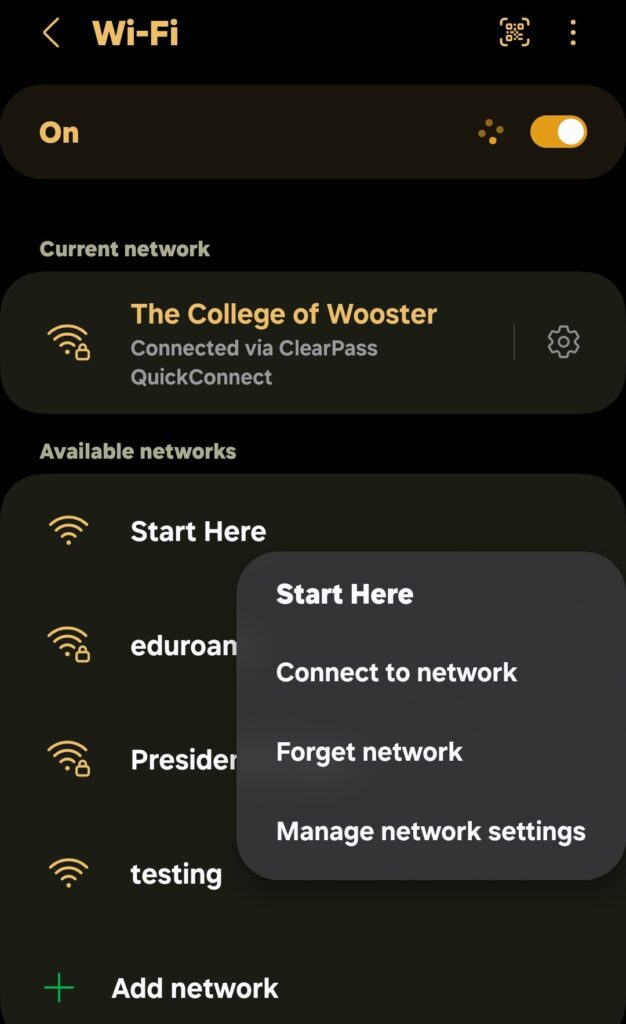
- Return to Settings, then Wi-Fi.
- Confirm you are connected to College of Wooster.
- Select Start Here, or the gear or information icon next to it.
- Select Forget. Depending on your device this may read Forget network or Remove.
Getting Help
- Email: helpdesk@wooster.edu
- Phone: 330-287-4357 (330-287-HELP)
- Walk-in: Help Desk, 4th floor