
What can we help you with?
Changing Your Wooster Password
Use this article to change your Wooster password when you still know your current one. Find your group below, then follow the steps for your computer.
If you can’t remember your current password, jump to Forgot your password?
Faculty/Staff
The steps depend on the type of computer you use. Find yours below.
Changing your password on a Mac
Macs at Wooster come in two types domain-bound (Check the screenshot below) and Intune Mac. Pick the one that matches your Mac.
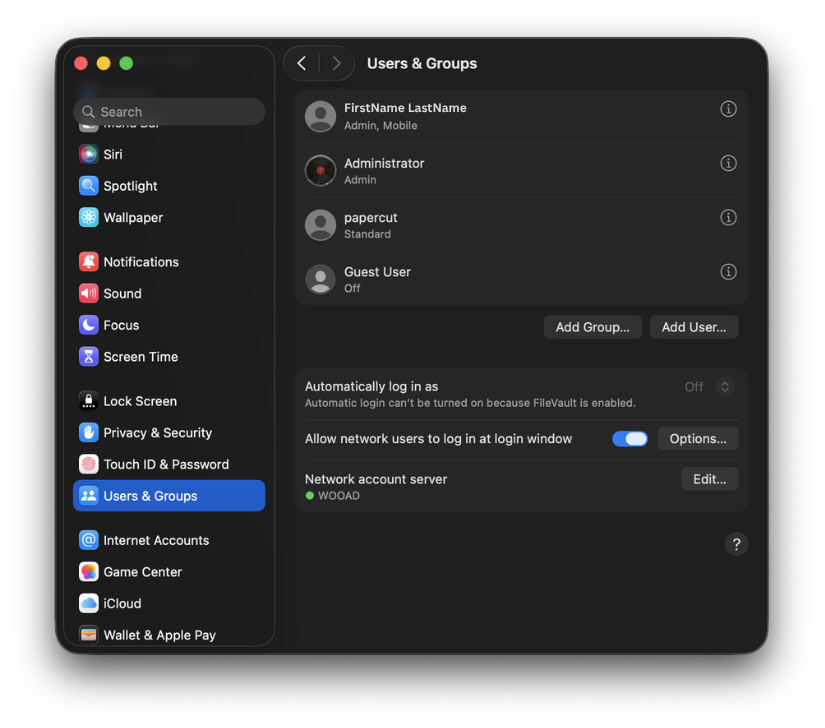
Note: To identify domain-bound mac please navigate to Apple menu > System Settings > Users & Groups. Under Network Account Server it will have WOOAD (Ref: Picture from Domain-Bound Mac step 2)
Domain-Bound Mac
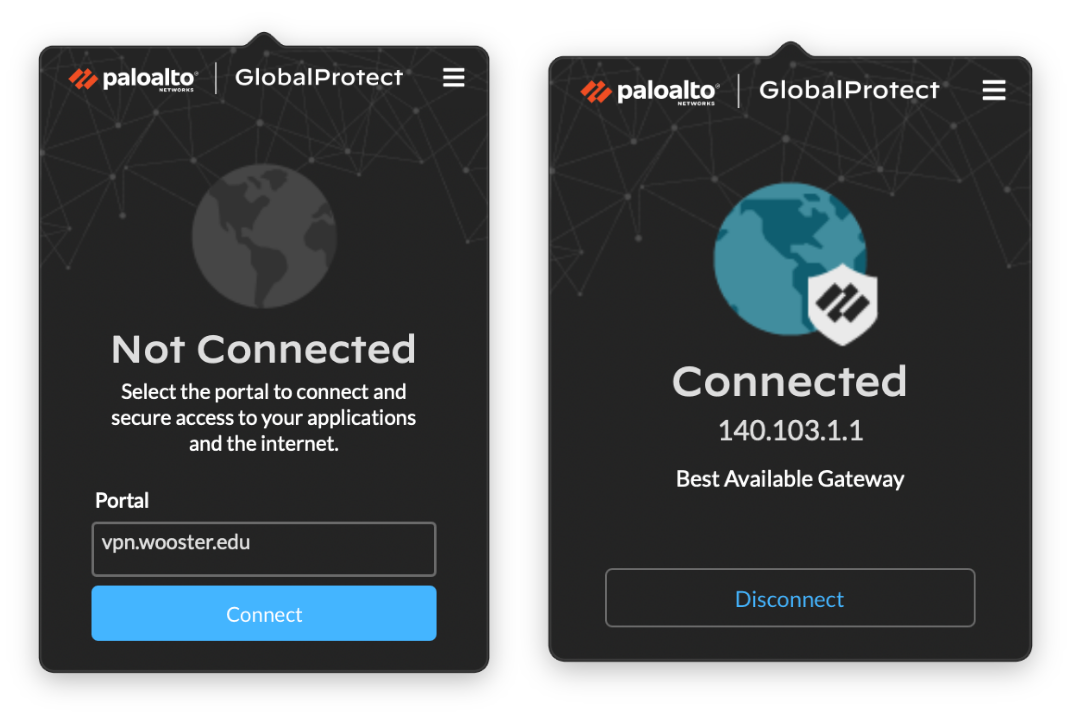
- Make sure you are on Wooster’s Wi-Fi. If you are off campus, turn on your VPN (GlobalProtect) first.
- Click the Apple menu > System Settings > Users & Groups.
- Click the i icon next to your account.
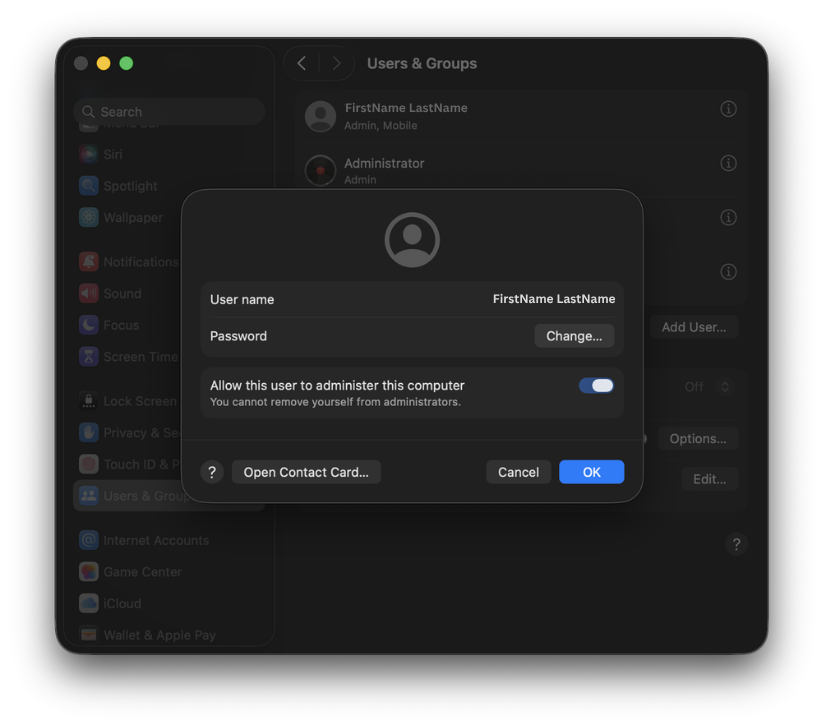
- Click Change Password.
- Type your current password in the Old Password box.
- Type your new password in the New Password box. Type it again in the Verify box.
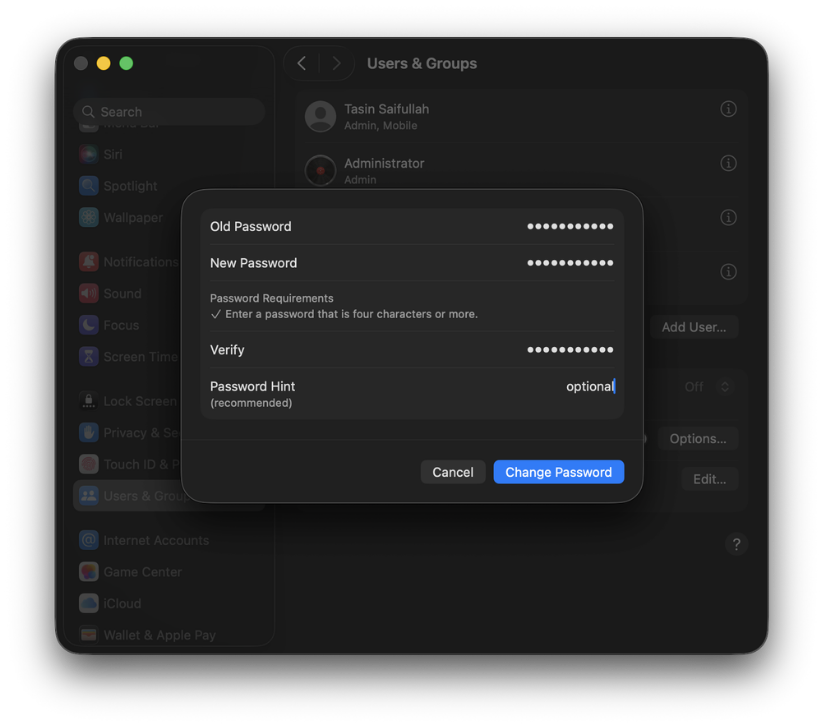
- Optional: add a Password Hint to help you remember it.
- Click Change Password.
Intune Mac
- Go to myaccount.microsoft.com and sign in with your Wooster email and password.
- On the left side, go to My Account > Change Password.
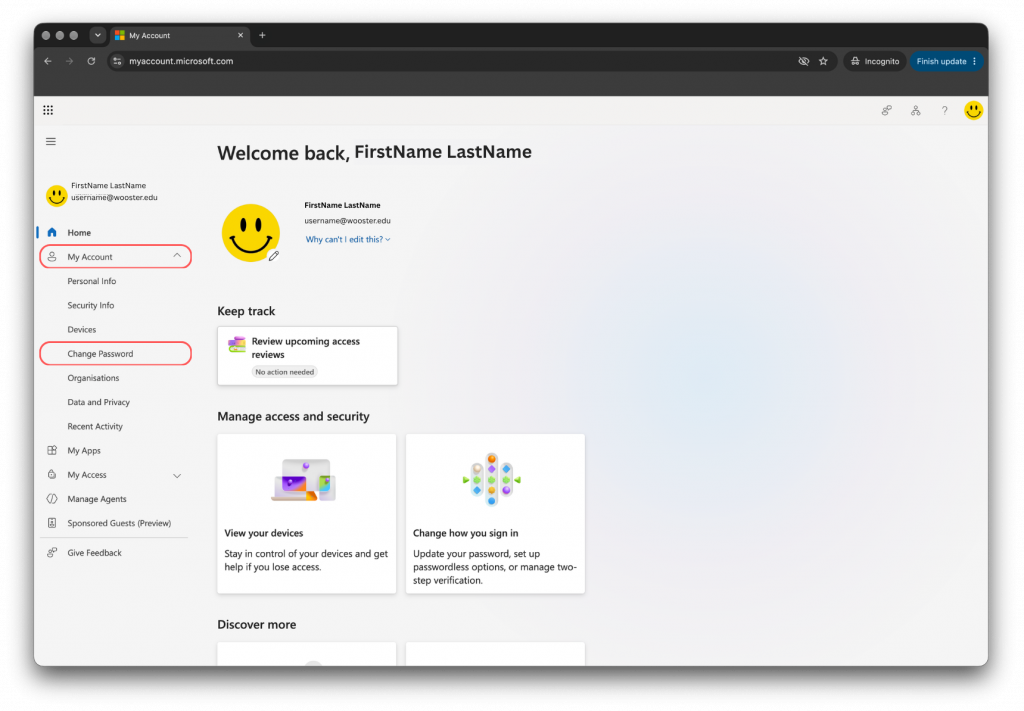
- Approve the sign-in when it asks you to verify with multi-factor authentication (MFA).
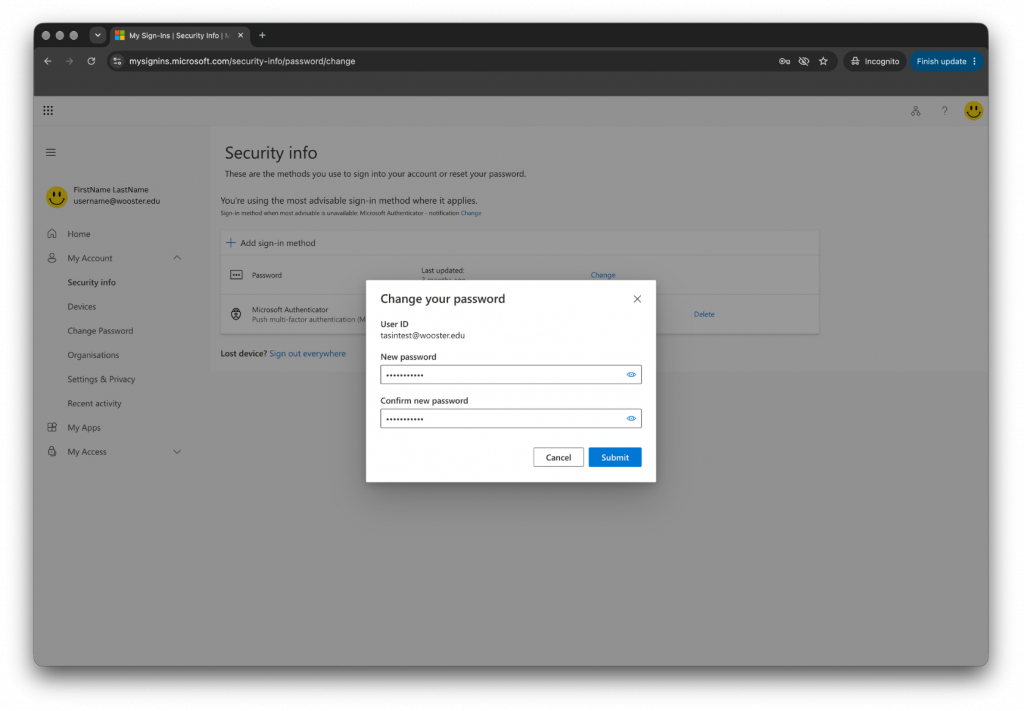
- Your current password may already be filled in. If it asks for it, type your current password in the Current password box.
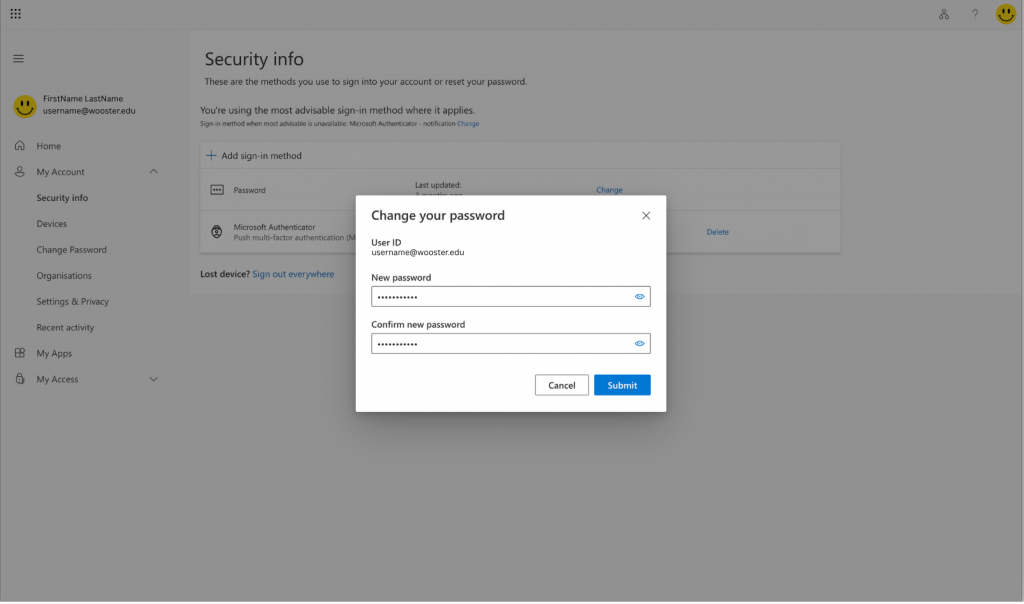
- Type your new password in the New password box. Type it again in the Confirm new password box.
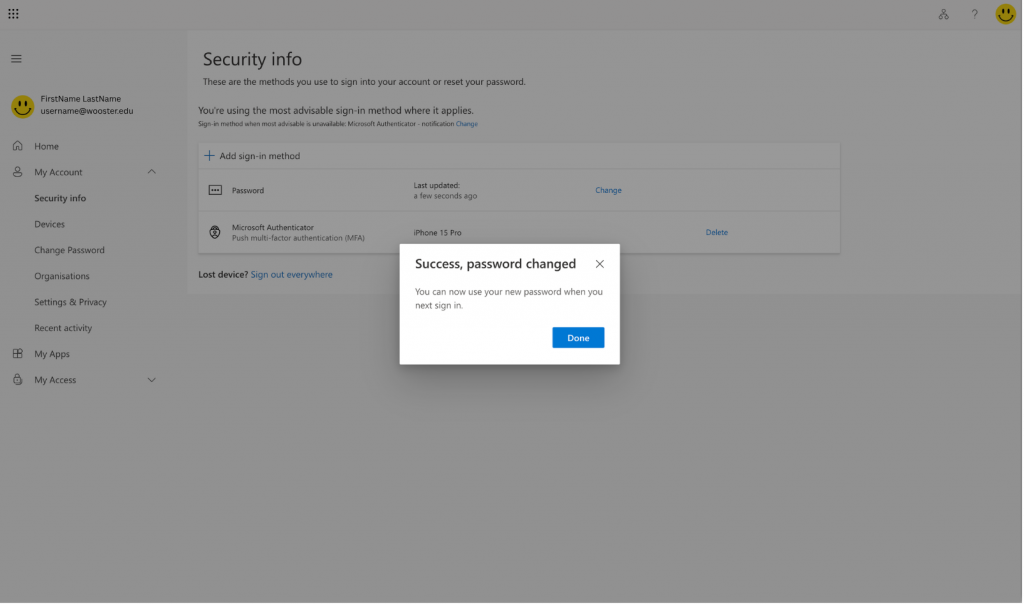
- Click Submit.
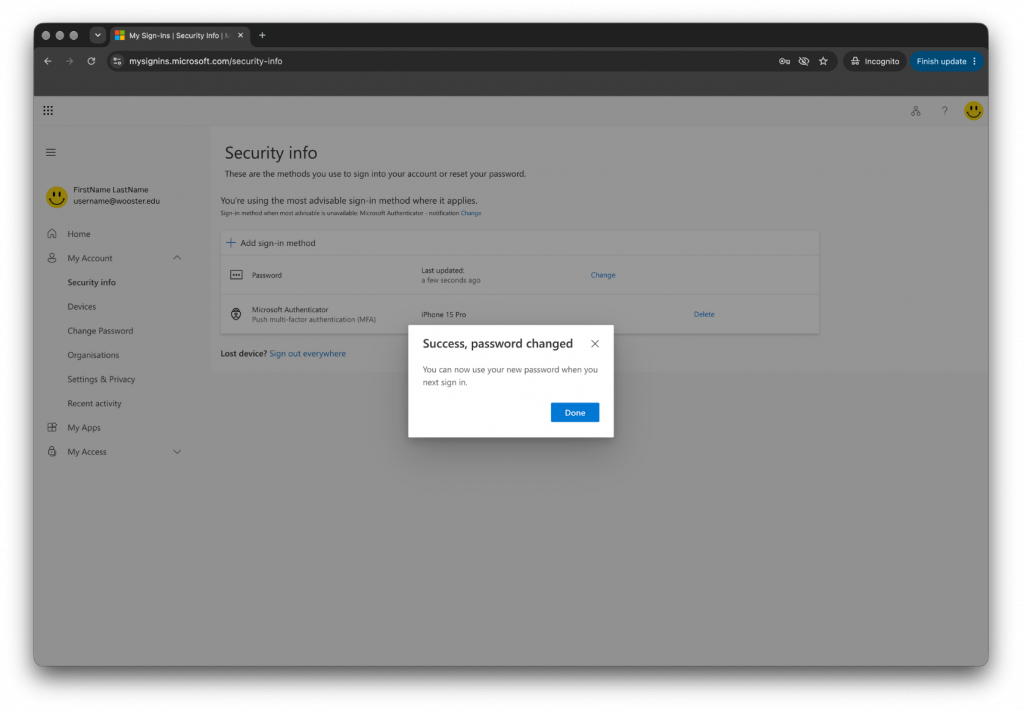
Note: It may take few minutes to maximum 4 hours.
Changing your password on Windows
- Go to myaccount.microsoft.com and sign in with your Wooster email and password.
- On the left side, go to My Account > Change Password.
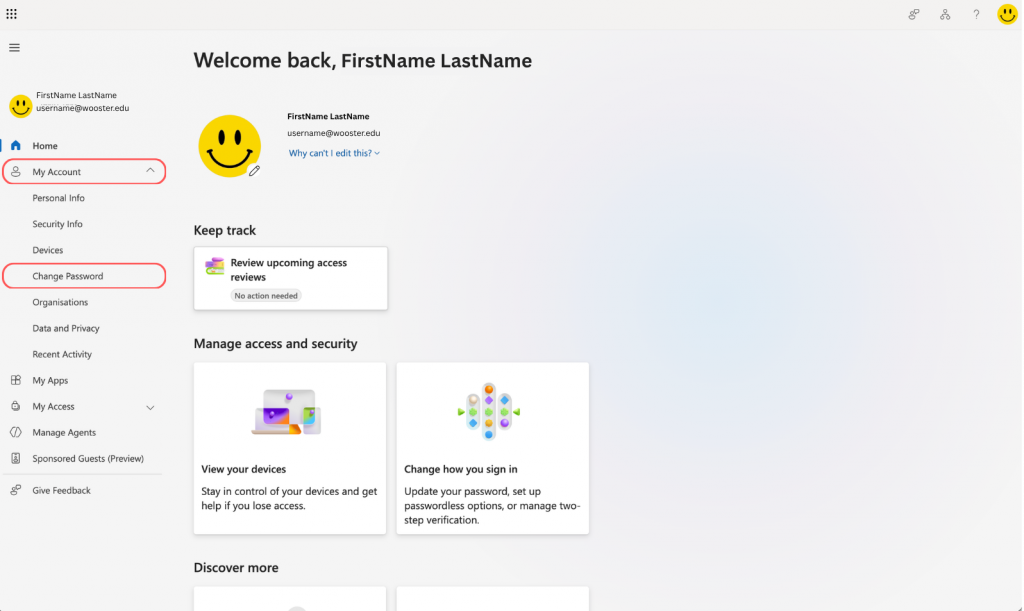
- Approve the sign-in when it asks you to verify with multi-factor authentication (MFA).
- Your current password may already be filled in. If it asks for it, type your current password in the Current password box.
- Type your new password in the New password box. Type it again in the Confirm new password box.
- Click Submit.
Students
The steps are the same on a Mac, a Windows PC, or any other device with a web browser.
- Go to myaccount.microsoft.com and sign in with your Wooster email and password.
- On the left side, go to My Account > Change Password.
- Approve the sign-in when it asks you to verify with multi-factor authentication (MFA).
- Your current password may already be filled in. If it asks for it, type your current password in the Current password box.
- Type your new password in the New password box. Type it again in the Confirm new password box.
- Click Submit.