

When I first started using LaTeX, I wasted a good amount of time trying to debug code that looked perfectly fine. The culprit? I was typing like I was in Microsoft Word.
LaTeX treats certain symbols as commands rather than text. If you use them without “escaping” them, the software thinks you are trying to give it an instruction it doesn’t understand.
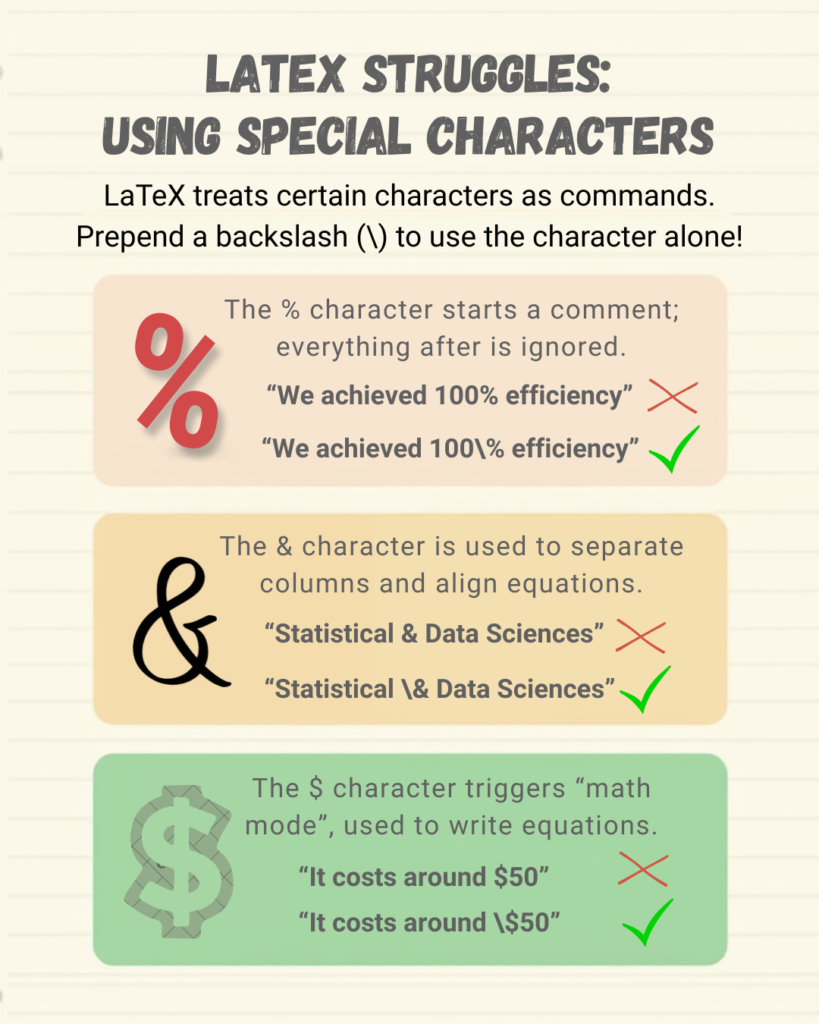
Here are the top 3 distinct characters that will break your document if you aren’t careful, and how to fix them:
The Percent Sign (%)
- The Problem: Typing something like “We achieved 100% efficiency”
- Why it breaks: In LaTeX, % is used to make comments. Everything you type after it becomes invisible to the compiler.
- The Fix: Add a backslash: “We achieved 100\% efficiency”
The Ampersand (&)
- The Problem: Typing something like “Statistical & Data Sciences”
- Why it breaks: LaTeX uses & to separate columns and align equations. It thinks you are trying to start a new table column in the middle of a sentence.
- The Fix: Add a backslash: “Statistical \& Data Sciences”
The Dollar Sign($)
- The Problem: Typing something like “It costs $50”
- Why it breaks: The $ triggers “Math Mode.” LaTeX thinks you are starting an equation and will throw an error if you don’t close it with another $.
- The Fix: Add a backslash: “It costs \$50”
KEY TAKEAWAY: If your document crashes and you don’t’ know why, check for these special characters first. A simple backslash may be the hero you need!