

Whether you’re filming on your phone or editing a project for class, clean-looking video makes a big difference. CapCut offers a simple set of tools that anyone can use to instantly improve their footage. In this quick tip, I’ll walk through how four basic adjustments can transform a flat clip into something polished and ready to share. By focusing on just Temperature, Tint, Saturation, and Contrast, you can improve the clarity and feel of nearly any video. Below, we’ll look at how to access these tools and how each one contributes to a cleaner final look.
Getting to the Adjust Tools in CapCut
Before we start adjusting colors, we need to navigate to the right workspace in CapCut.
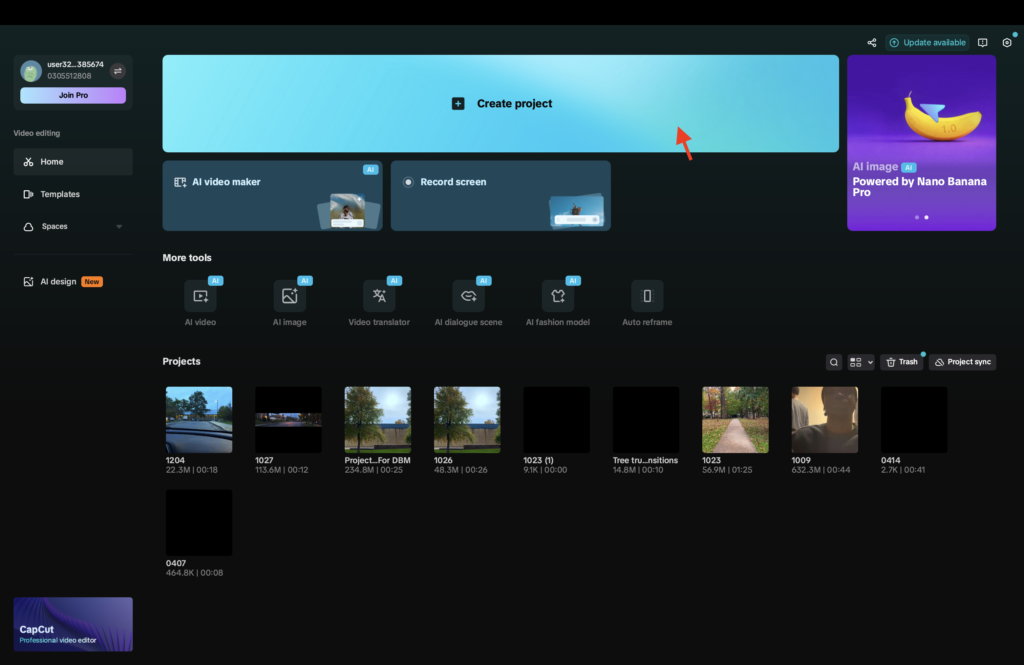
- Open CapCut and create a New Project.
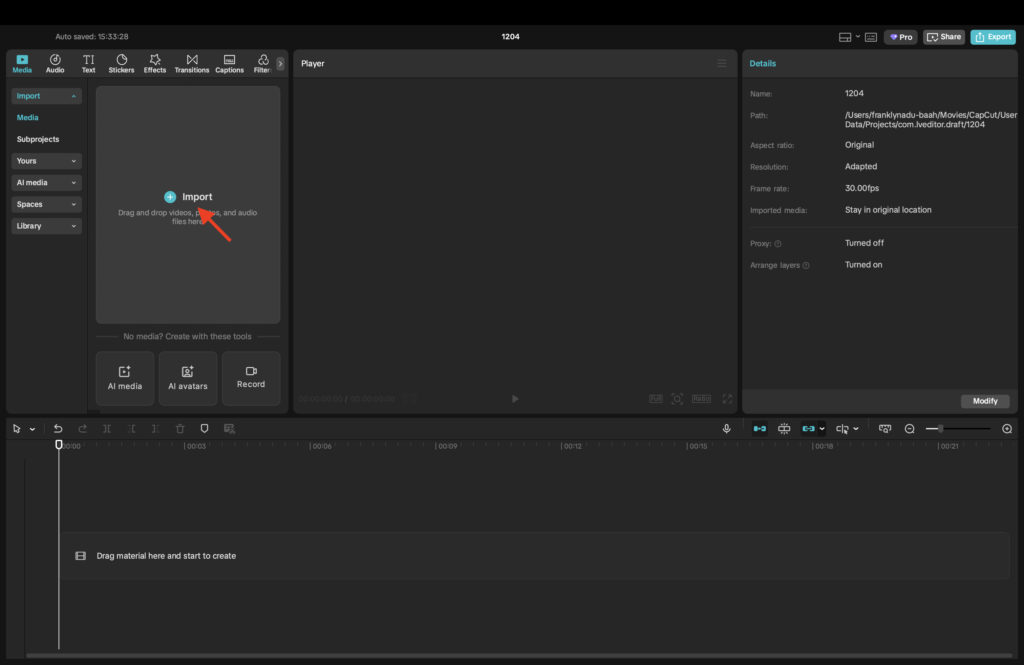
- Import your video clip into the timeline.
- Tap the clip so it becomes highlighted.
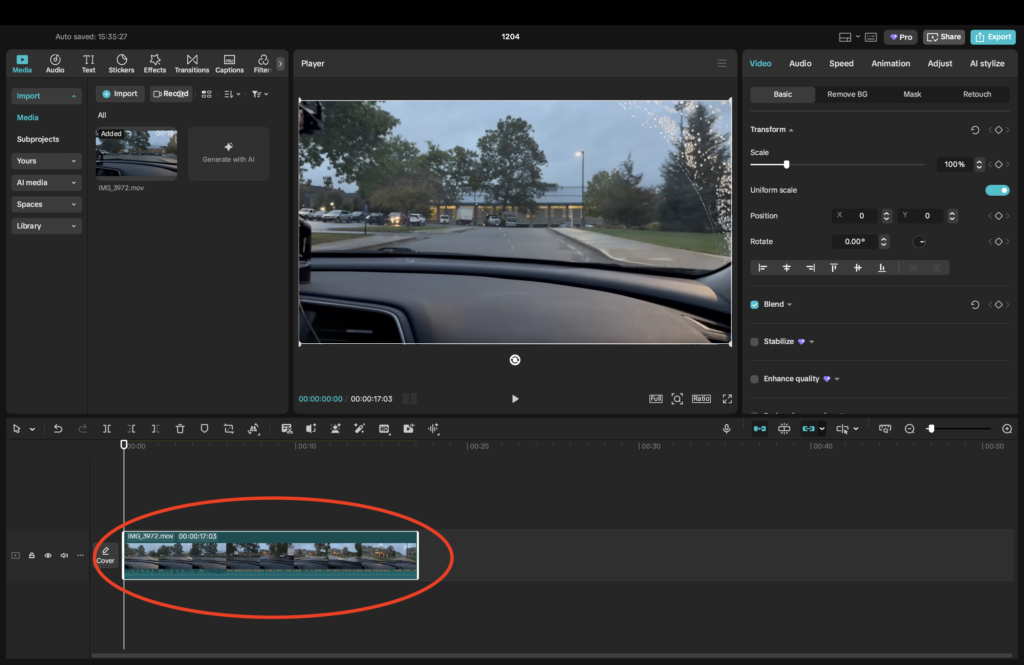
- Look to the Top Right corner and select Adjust.
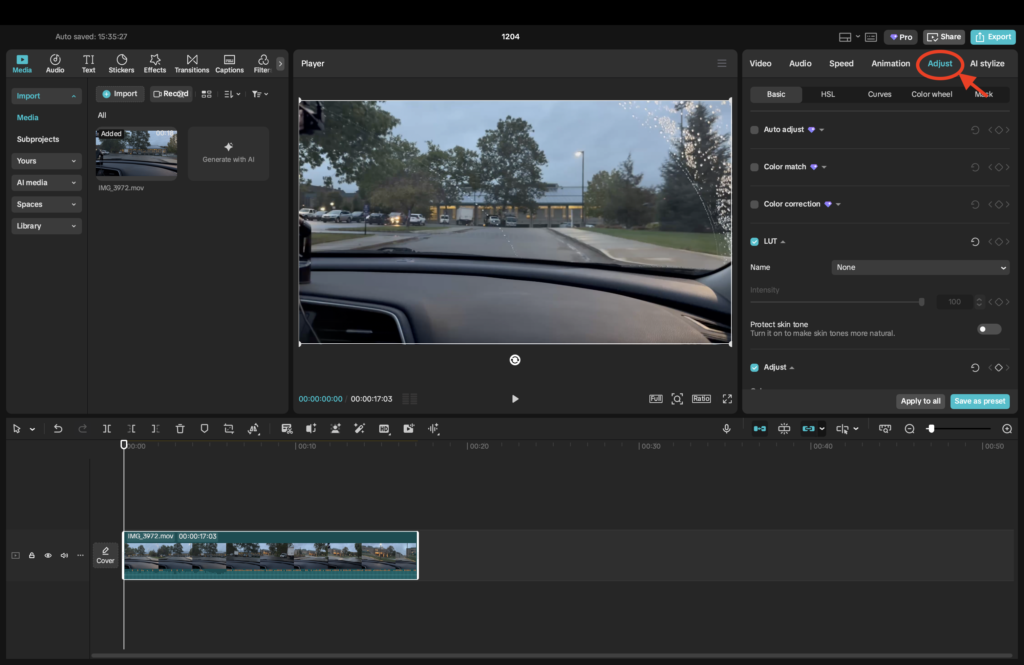
This opens CapCut’s color panel, the place where all color grading happens. You’ll see sliders for Temperature, Tint, Saturation, Contrast, Exposure, and more. For this quick tip, we’ll focus on the four adjustments that consistently make footage look cleaner with minimal effort. Temperature. Tint. Saturation. Contrast.
Using Four Simple Adjustments to Clean Up Your Footage
Below, we start with a raw clip and walk through how each slider contributes to a cleaner look. The key is making small, intentional adjustments. You can always add more, but subtle changes often create the best results.
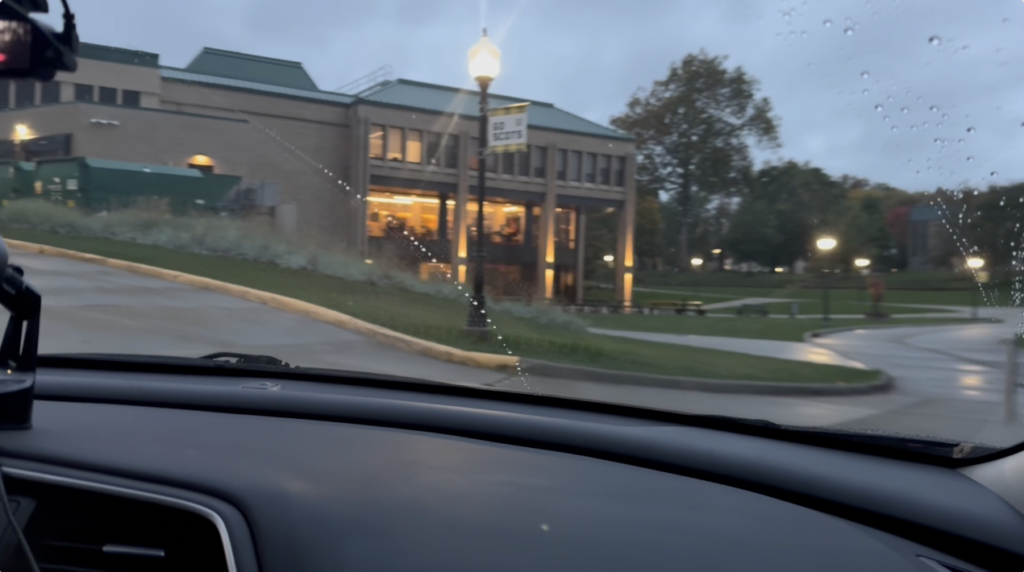
Temperature: Adding Warmth and Life
Temperature controls how warm (yellow) or cool (blue) your footage appears.
Slightly warming a clip usually:
- Improves skin tones
- Makes outdoor footage more natural
- Reduces a dull or bluish cast
If your video already looks orange, you can cool it down instead. The goal is balance.
Tint: Fixing Color Imbalance
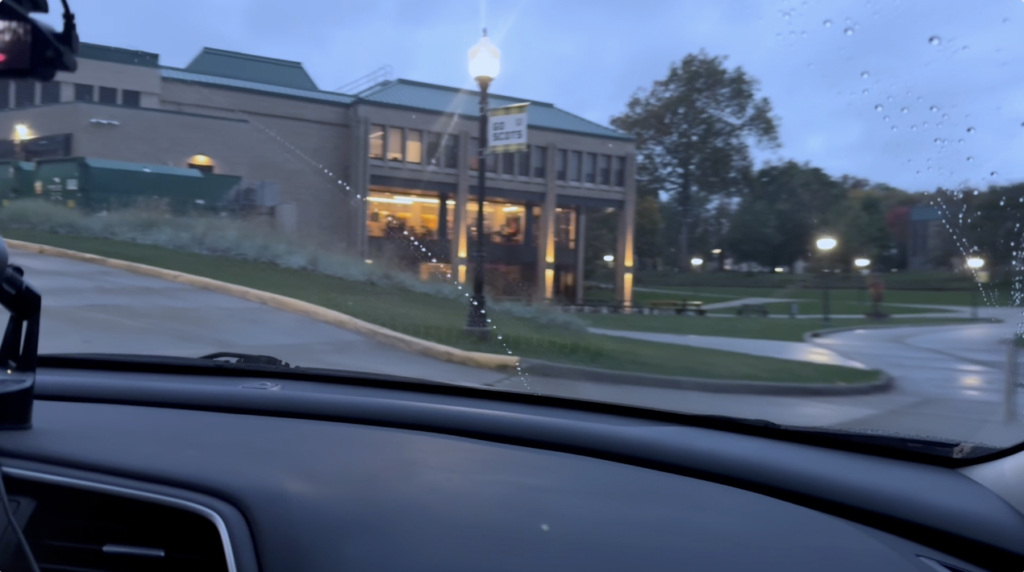
Tint shifts your colors between green and magenta. Cameras often pick up subtle color casts depending on the environment.
Use Tint to:
- Neutralize unwanted green tones (fluorescent lighting)
- Reduce magenta shifts
- Bring your footage closer to natural color
Even a tiny adjustment can clean up the entire look of a clip.
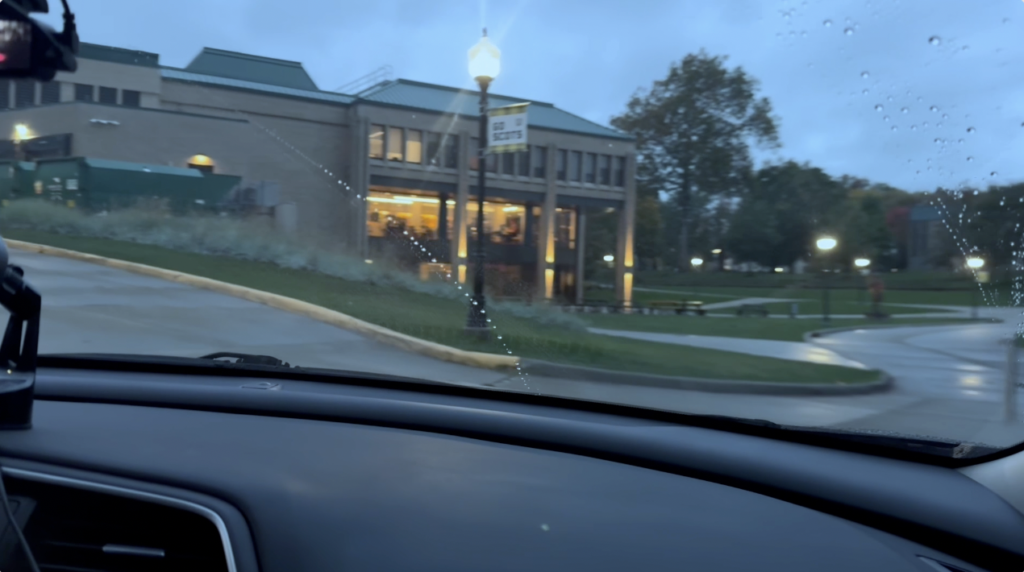
Saturation: Making Colors Pop
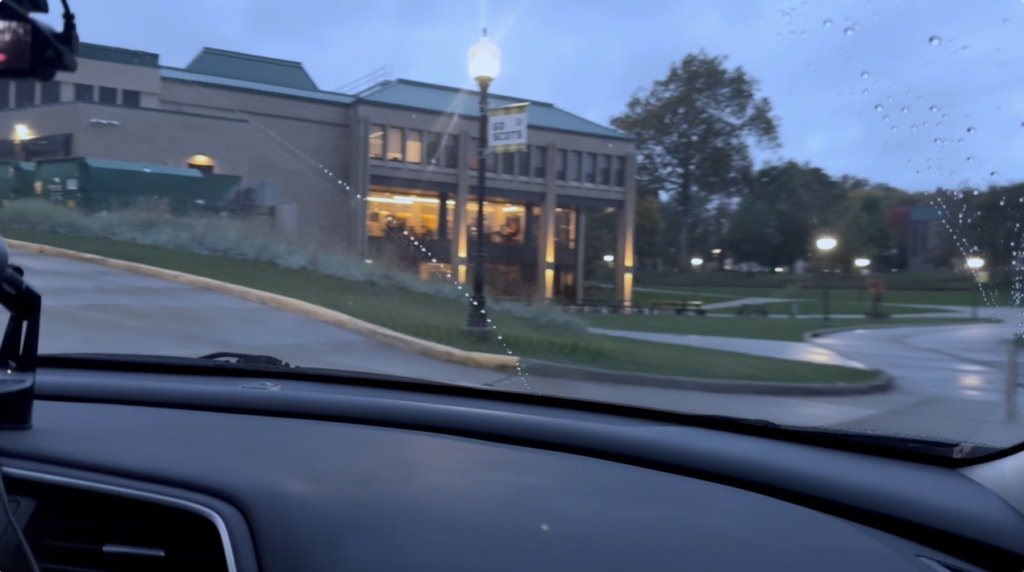
Saturation increases the intensity of your colors. This is one place where less is more.
A small boost can:
- Add vibrancy without looking artificial
- Help highlight subjects in the frame
- Improve flat midtones caused by low lighting
Avoid pushing saturation too far, heavy saturation can quickly look unrealistic.
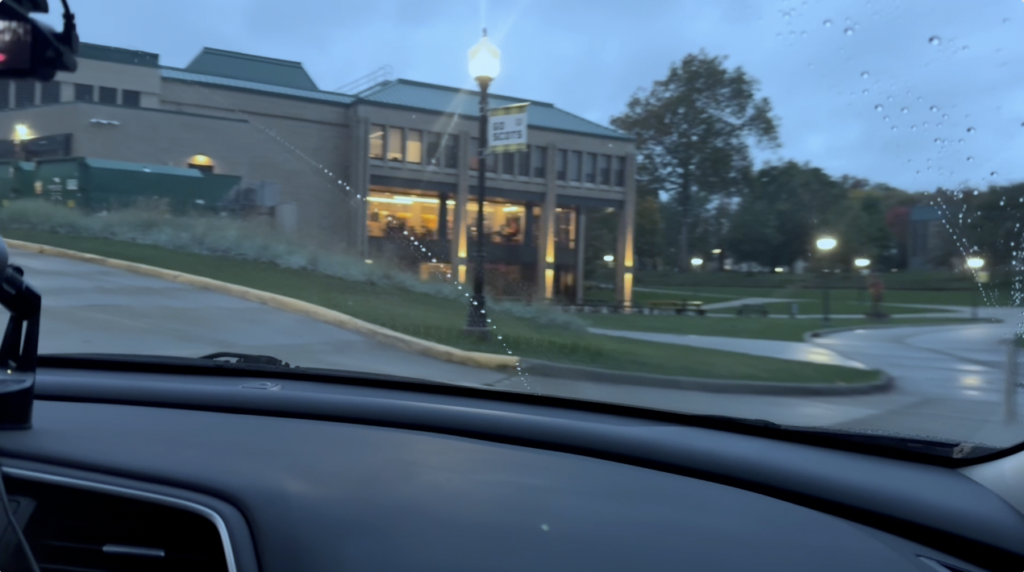
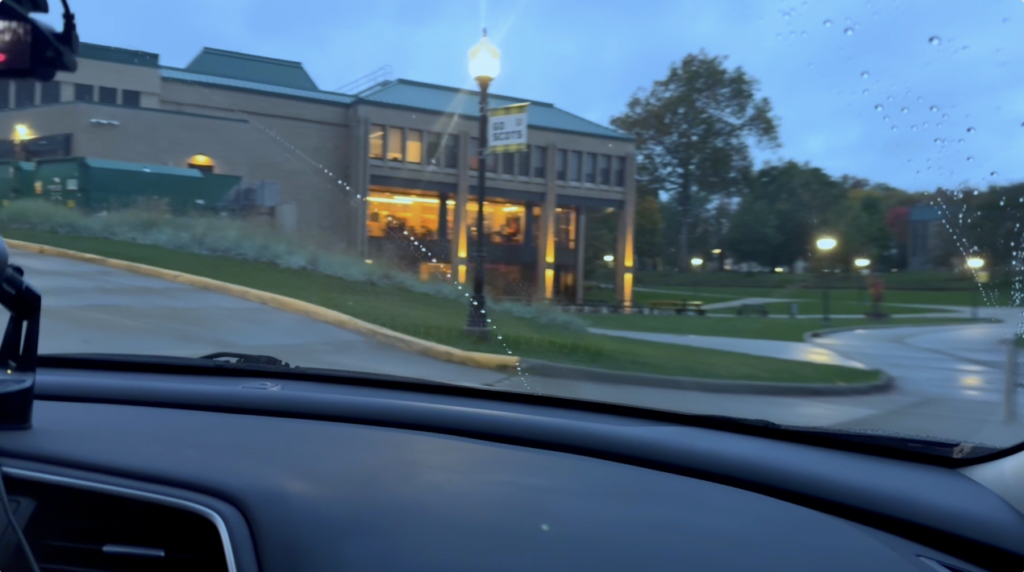
Contrast: Creating Depth and Clarity
Contrast separates the bright and dark areas of your video. Increasing contrast adds depth and sharpness to footage that looks washed out.
A gentle contrast adjustment can:
- Improve clarity
- Give the image a crisper feel
- Make subjects stand out more
This is often the final step that makes footage look professionally polished.
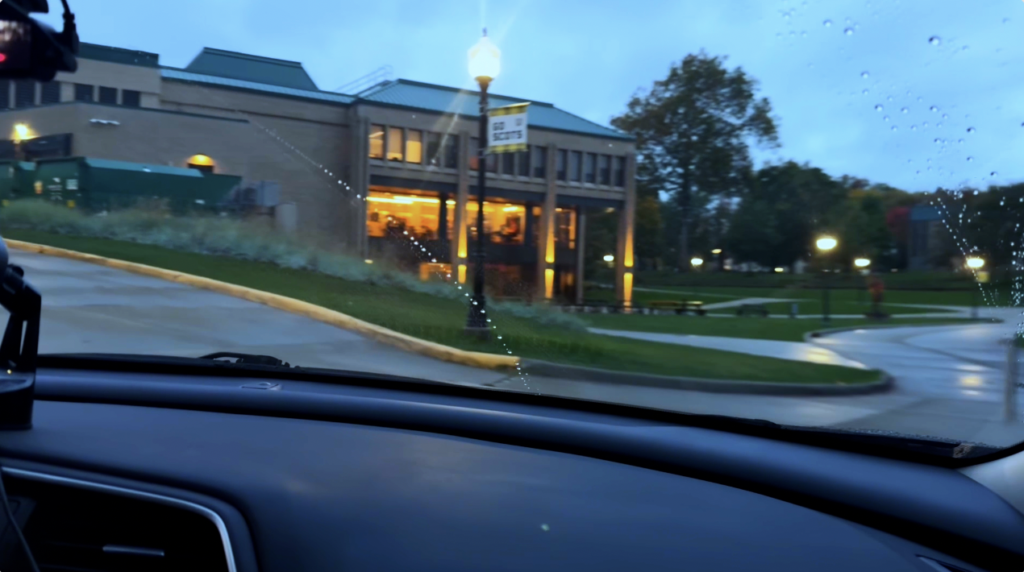
Putting It All Together
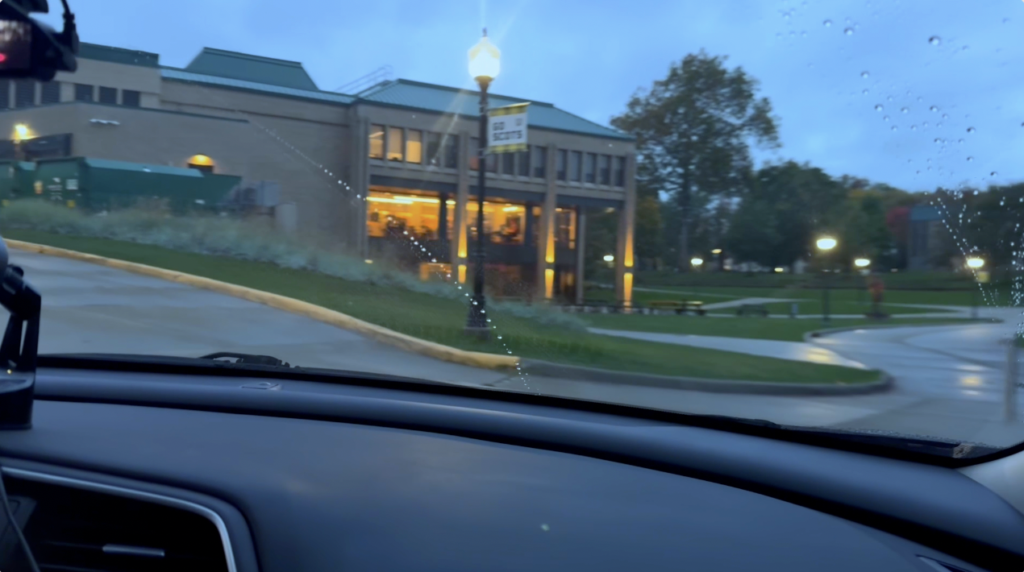
Here’s a comparison of the original clip and the final graded version after applying all four adjustments:
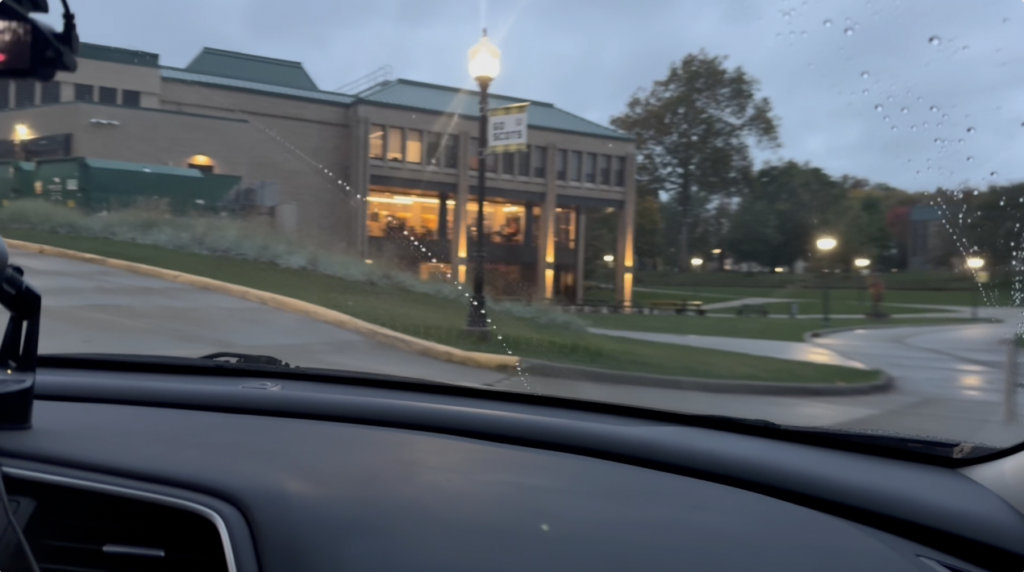
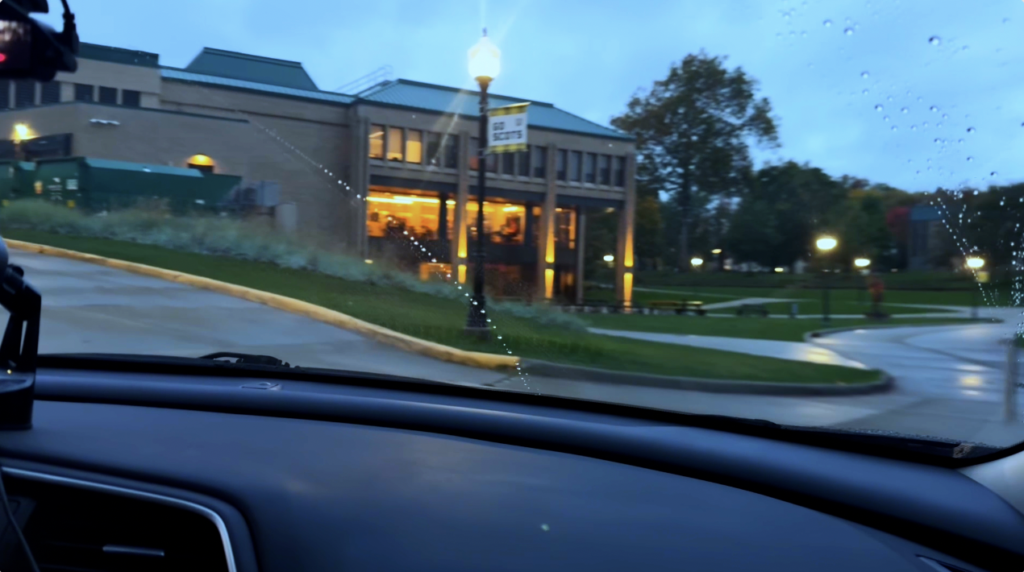
- Slight cool Temperature
- Subtle Tint correction
- Gentle Saturation boost
- Clean Contrast enhancement
The difference speaks for itself! The final video looks brighter, sharper, and more intentional. These same steps work across a wide range of footage, whether you’re filming indoors, outdoors, or in mixed lighting.
Learn More About CapCut
Want to explore more features or follow detailed tutorials?
- Visit the official CapCut website: https://www.capcut.com/
- Browse CapCut’s Help Center: https://www.capcut.com/support
- Explore CapCut’s YouTube tutorials for step-by-step guides